Ship a ChatGPT App in 2 Commands (April 2026)
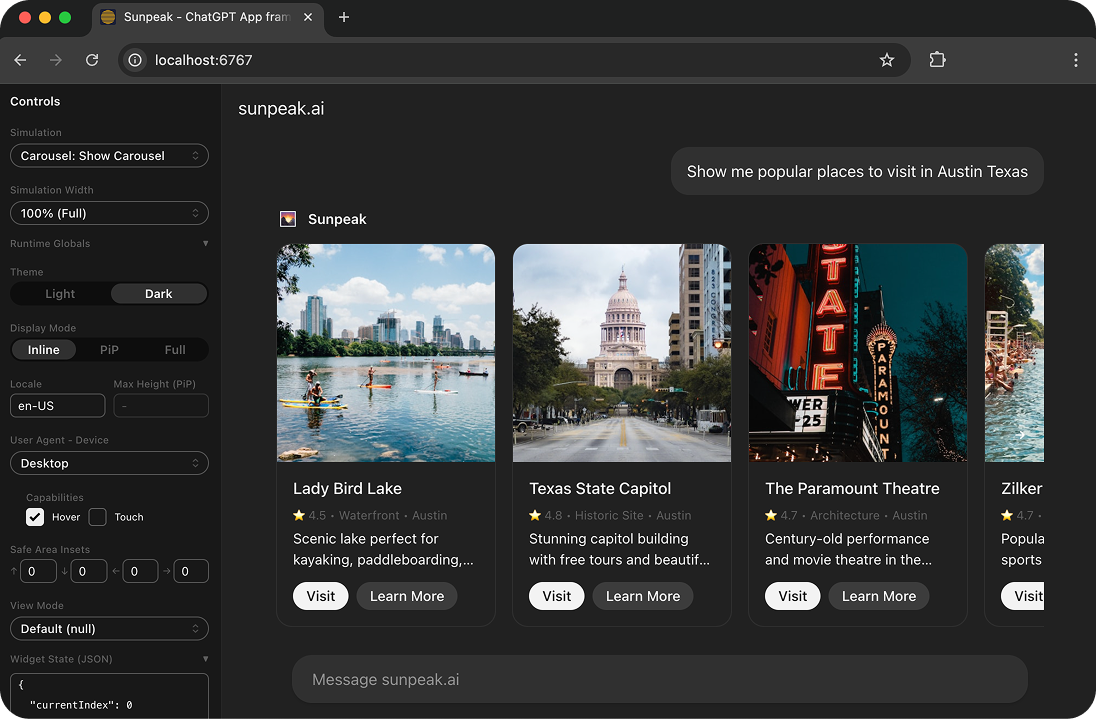
The default carousel ChatGPT App built and deployed with sunpeak.
With sunpeak, you can go from zero to a working ChatGPT App in two commands. This guide walks through the full process: scaffolding your project, testing locally without a ChatGPT account, connecting to the real ChatGPT, and deploying to production.
TL;DR: Run npx sunpeak new to scaffold a complete ChatGPT App project, then pnpm dev to start building. The sunpeak Inspector replicates the ChatGPT runtime at localhost:3000. When you’re ready to test in real ChatGPT, expose your server with ngrok and add the URL in ChatGPT’s developer mode settings.
Command 1: Create your project
Scaffold a new ChatGPT App:
npx sunpeak newThis creates a project with everything you need:
- src/resources/ for your UI components (React views that render inside ChatGPT)
- src/tools/ for tool handlers (the actions ChatGPT’s model can invoke)
- src/server.ts for server configuration and optional auth
- tests/ for Playwright test files and simulation fixtures
- A pre-configured MCP server, TypeScript, Vite, and hot module replacement
Command 2: Start developing
cd sunpeak-app && pnpm devThis starts two things:
- Your MCP server on port 8000, which handles tool calls and serves your App resources
- The sunpeak Inspector on port 3000, a local replica of the ChatGPT runtime
Open localhost:3000 and you’ll see your App running in a simulated ChatGPT environment. Every code change hot-reloads instantly, no manual refresh needed.
The Inspector also supports Claude, so you can switch hosts from the sidebar dropdown and see how your App renders in both environments from one codebase. This is one of the bigger time-savers because your MCP App works across hosts without code changes.
Testing your App locally
Before connecting to the real ChatGPT, you can thoroughly test your App right from the Inspector.
sunpeak’s testing framework runs against the local Inspector, which means your tests replicate real ChatGPT behavior without a paid account or API credits. Simulation files in tests/simulations/ provide deterministic mock data so your tests produce the same result every time.
pnpm test           # run unit + e2e tests
pnpm test:visual    # visual regression testing
pnpm test:eval      # multi-model LLM evals
You can also add these tests to your CI/CD pipeline so every PR gets validated automatically.
Connecting to the real ChatGPT
When you’re ready to see your App in ChatGPT, you need to expose your local MCP server with a public URL. ngrok works well for this (a free account is enough):
ngrok http 8000Copy the Forwarding URL from ngrok’s output, then add it in ChatGPT:
- Go to Settings > Apps > Advanced settings
- Enable Developer mode (requires a Plus, Team, or Enterprise account)
- Click Create app and enter your ngrok URL with the
/mcppath, for example:https://abc123.ngrok-free.dev/mcp
Start a new conversation and invoke one of your tools. ChatGPT will call your MCP server, and your App UI will render right in the chat.
If you don’t have a paid ChatGPT account, the Inspector fully covers local development and testing. You can build and ship your App without connecting to ChatGPT until you’re ready to deploy.
Deploying to production
For production, you don’t need ngrok. Build and start your server directly:
pnpm build && pnpm startpnpm build compiles your resources into optimized bundles and your tools into production-ready modules. pnpm start launches the MCP server on port 8000 (configurable via the PORT environment variable).
Deploy to any Node.js host, or use createMcpHandler for custom Express setups and createHandler for serverless platforms. The deployment guide covers production configuration, scaling, health checks, and publishing to OpenAI’s platform.
What you get out of the box
The scaffolded project includes a sample carousel App that demonstrates tools, resources, and display modes. From there you can build any UI that ChatGPT Apps support: dashboards, forms, data visualizations, multi-step workflows, and more.
Because sunpeak Apps are MCP Apps, they work in any MCP Apps-compatible host. The same App you build for ChatGPT also runs in Claude as a connector, with no code changes needed. Write once, test across hosts with the Inspector, and ship to production with pnpm build && pnpm start.
Get started with the quickstart guide, explore the ChatGPT App framework, or check out the full tutorial for a deeper walkthrough.
Get Started
npx sunpeak new
Further Reading
- ChatGPT App tutorial - full walkthrough from setup to deployment
- How to build a ChatGPT App - architecture and best practices
- ChatGPT App without a paid account - develop and test locally for free
- Complete guide to testing ChatGPT Apps - unit, E2E, visual, and eval testing
- How to deploy an MCP App - production hosting and scaling
- ChatGPT App framework - sunpeak overview
- MCP App testing framework - automated testing across hosts
- sunpeak quickstart guide
Frequently Asked Questions
What are the two commands to create and run a ChatGPT App?
Run "npx sunpeak new" to scaffold a complete ChatGPT App project with tools, resources, tests, and an MCP server. Then run "pnpm dev" inside the project to start the MCP server on port 8000 and the sunpeak Inspector on port 3000. The Inspector replicates the ChatGPT runtime locally so you can build and test without a ChatGPT account.
Do I need a paid ChatGPT account to develop ChatGPT Apps?
No. You can develop and test locally using the sunpeak Inspector at localhost:3000 without any ChatGPT account. The Inspector replicates the ChatGPT and Claude runtimes, so you see exactly how your App renders in each host. A paid ChatGPT Plus, Team, or Enterprise subscription with developer mode enabled is only needed when you want to connect your App to the real ChatGPT.
How do I connect my local ChatGPT App to the real ChatGPT?
Use a tunneling tool like ngrok to expose your local MCP server. Run "ngrok http 8000" to get a public URL, then add that URL with the /mcp path (e.g., https://abc123.ngrok-free.dev/mcp) in ChatGPT under Settings > Apps > Advanced settings > Developer mode. Start a new conversation and invoke one of your tools to see your App UI in ChatGPT.
What does sunpeak new scaffold for a ChatGPT App?
npx sunpeak new creates a TypeScript/React/Vite project with src/resources/ for UI components, src/tools/ for tool handlers, src/server.ts for server configuration, tests/ for Playwright test files, and tests/simulations/ for deterministic test fixtures. It includes a working MCP server, hot module replacement, and a sample carousel App out of the box.
How do I test my ChatGPT App automatically?
sunpeak includes a built-in testing framework. Run "pnpm test" to execute unit and end-to-end tests. E2E tests run against the local Inspector using Playwright, so they replicate real ChatGPT behavior without needing a ChatGPT account or burning API credits. You can also run visual regression tests with "pnpm test:visual" and multi-model evals with "pnpm test:eval".
What is the sunpeak Inspector and how does it help with ChatGPT App development?
The sunpeak Inspector is a local development tool that replicates the ChatGPT and Claude MCP App runtimes at localhost:3000. It renders your App resources exactly as they appear in real hosts, supports display mode switching, loads simulation files for deterministic testing, and serves as the runtime for automated E2E tests. It saves you from manually refreshing ChatGPT on every code change.
Can I deploy my ChatGPT App to production without ngrok?
Yes. ngrok is only for local development. For production, run "pnpm build" to compile your resources and tools, then "pnpm start" to launch the production MCP server. Deploy to any Node.js host, serverless platform, or use createMcpHandler for custom Express setups. See the sunpeak deployment guide for full details.
Can I build one App that works in both ChatGPT and Claude?
Yes. sunpeak Apps are MCP Apps, which means they work across any MCP Apps-compatible host. Write your UI once using portable APIs like useToolData, useHostContext, and useDisplayMode, then test in both ChatGPT and Claude using the Inspector host dropdown. The same codebase runs in both hosts without changes.
