How to Build a ChatGPT App (August 2026)
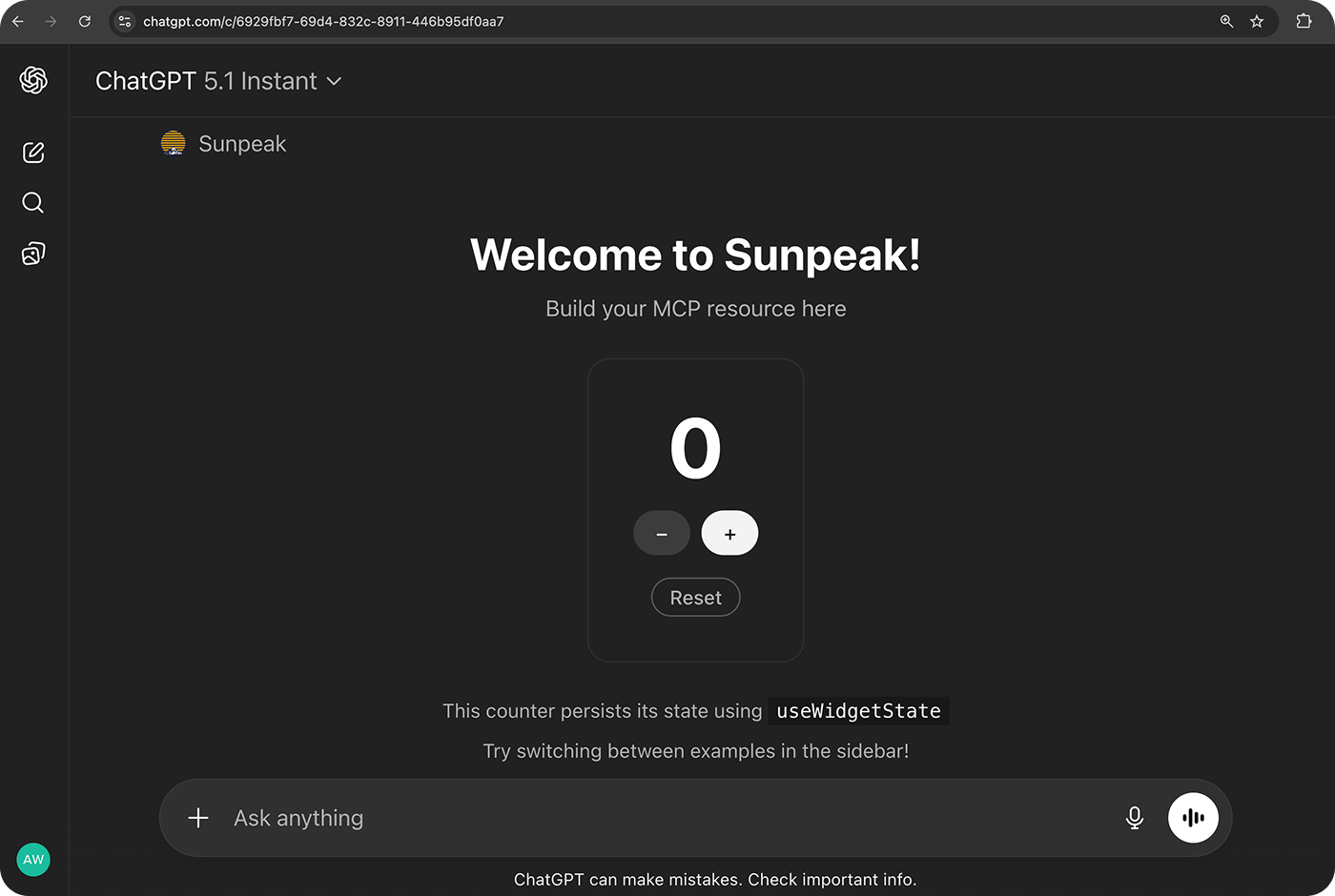
A simple counter app built and deployed with sunpeak.
A ChatGPT App combines an MCP server with an optional interactive UI. ChatGPT decides when to call your tools, your server returns data, and the UI turns that data into a form, chart, map, review screen, or other focused interface inside the conversation.
TL;DR: Build one useful tool first, keep its text result usable without UI, attach a ui:// resource for the interactive path, and test both contracts locally. Use npx sunpeak new for a working TypeScript scaffold, then connect the production-like /mcp endpoint to ChatGPT and publish it as an MCP-backed plugin.
Understand the 2026 Architecture
The current system has four parts with different jobs:
| Part | Runs where | Owns |
|---|---|---|
| MCP server | Your infrastructure | Tools, schemas, auth, business logic, and UI resources |
| ChatGPT host | OpenAI | Tool selection, approvals, conversation state, resource loading, and the iframe sandbox |
| MCP App View | Sandboxed iframe | Interactive UI and temporary presentation state |
| Plugin | OpenAI distribution layer | Public listing, MCP connection, optional skills, review, and versioned metadata |
The plugin is packaging and distribution. It does not replace the MCP App runtime. OpenAI’s current plugin docs allow an MCP-only plugin, a skills-only plugin, or one that combines both. Custom UI is optional, so add it when users need to inspect, compare, edit, confirm, or navigate structured information.
MCP Apps became the first official MCP extension in January 2026. Its stable 2026-01-26 specification defines _meta.ui.resourceUri, text/html;profile=mcp-app resources, a sandboxed View, and the ui/* JSON-RPC bridge over postMessage.
The core Model Context Protocol also shipped 2026-07-28 with a stateless core and formal extension negotiation. These versions describe different layers: core MCP handles Host-to-server requests, while MCP Apps handles View-to-Host communication. Hosts do not all adopt a new core version on the same day, so negotiate capabilities and test the clients you support instead of forcing a protocol label.
As of this refresh, the published sunpeak@0.20.81 package uses @modelcontextprotocol/ext-apps@1.7.5 and the v1 MCP TypeScript SDK. Its server follows the 2025-era MCP lifecycle that current hosts accept. sunpeak’s --stateless mode removes session tracking for deployment, but it does not switch the wire protocol to MCP 2026-07-28.
Decide Whether the Tool Needs UI
Start with the user job, then decide whether UI helps.
Text is often enough for a lookup, short calculation, or action confirmation that fits in one sentence. UI earns its cost when the user needs to:
- Compare several records.
- Change multiple related fields.
- Inspect visual or spatial data.
- Review an action before committing it.
- Keep an ongoing task visible.
Every UI-backed tool still needs a useful model-readable result. A host may not support MCP Apps, a resource may fail to load, or a user may invoke the tool from a text-only client. The tool should complete the core job without requiring the iframe.
For complex workflows, separate data tools from render tools. A search tool can return candidate IDs and metadata, the model can refine the set, and a render tool can display only the final records. This avoids remounting an iframe after every intermediate tool call and keeps business logic out of the component.
Scaffold the Project
Create a project and choose one of the included starter resources:
npx sunpeak new counter-app
cd counter-app
pnpm dev
The scaffold includes:
counter-app/
  src/
    resources/
    tools/
    server.ts
  tests/
    simulations/
    e2e/
    live/
    evals/
  package.json
pnpm dev starts the MCP server, resource build, and browser inspector. The inspector reproduces ChatGPT and Claude host behavior locally, so you can change tool inputs, tool results, theme, display mode, and viewport without opening a real host.
If your MCP server already exists, keep it in its current language and framework:
npx sunpeak inspect --server http://localhost:8000/mcp
npx sunpeak test init --server http://localhost:8000/mcp
The inspector and test runner work through MCP, so the existing server can be written in Python, Go, Rust, TypeScript, or another language.
Define a Typed Tool Contract
The model sees your tool name, description, input schema, annotations, and result. These fields control discovery, argument quality, approval behavior, and review, so write them as a contract rather than UI copy.
Create src/tools/show-counter.ts:
import { z } from 'zod';
import type { AppToolConfig, ToolHandlerExtra } from 'sunpeak/mcp';

export const tool: AppToolConfig = {
  resource: 'counter',
  title: 'Show Counter',
  description: 'Open an interactive counter at a requested starting value',
  annotations: {
    readOnlyHint: true,
    destructiveHint: false,
    openWorldHint: false,
  },
  _meta: {
    ui: { visibility: ['model', 'app'] },
  },
};

export const schema = {
  start: z
    .number()
    .int()
    .min(0)
    .max(100)
    .optional()
    .describe('Initial counter value from 0 through 100'),
};

export const outputSchema = {
  count: z.number().int(),
};

type Args = z.infer<z.ZodObject<typeof schema>>;

export default async function (
  args: Args,
  _extra: ToolHandlerExtra,
) {
  const count = args.start ?? 0;

  return {
    content: [
      {
        type: 'text' as const,
        text: `Opened a counter at ${count}.`,
      },
    ],
    structuredContent: { count },
  };
}
The filename registers show-counter. The resource field links it to src/resources/counter/, and sunpeak emits the standard _meta.ui.resourceUri metadata for the host.
Use the annotations literally:
readOnlyHintis true only if the tool does not change state.destructiveHintis true when the action can delete, overwrite, revoke, or cause another hard-to-reverse change.openWorldHintis true for write tools that affect public or third-party systems, such as sending a message or publishing content.
Annotations inform host behavior, but they do not authorize a request. The handler must still check the authenticated user, tenant, record access, and action permission.
Build the UI Resource
Create src/resources/counter/counter.tsx:
import * as React from 'react';
import { SafeArea, useToolData } from 'sunpeak';
import type { ResourceConfig } from 'sunpeak';

export const resource: ResourceConfig = {
  title: 'Counter',
  description: 'Increment or decrement a counter',
  mimeType: 'text/html;profile=mcp-app',
  _meta: {
    ui: {
      prefersBorder: true,
    },
  },
};

type CounterInput = {
  start?: number;
};

type CounterOutput = {
  count: number;
};

export function CounterResource() {
  const { output, isLoading, isError, isCancelled } =
    useToolData<CounterInput, CounterOutput>();
  const [offset, setOffset] = React.useState(0);

  if (isLoading) return <SafeArea className="p-4">Loading...</SafeArea>;
  if (isError) return <SafeArea className="p-4">Counter failed.</SafeArea>;
  if (isCancelled) return <SafeArea className="p-4">Cancelled.</SafeArea>;
  if (!output) return null;

  const count = output.count + offset;

  return (
    <SafeArea className="p-4">
      <section
        aria-labelledby="counter-title"
        className="grid gap-4 text-center"
      >
        <h1 id="counter-title" className="text-lg font-semibold">
          Counter
        </h1>
        <output
          aria-live="polite"
          className="text-5xl tabular-nums"
        >
          {count}
        </output>
        <div className="flex justify-center gap-2">
          <button
            type="button"
            aria-label="Decrement"
            onClick={() => setOffset((value) => value - 1)}
          >
            -1
          </button>
          <button
            type="button"
            aria-label="Increment"
            onClick={() => setOffset((value) => value + 1)}
          >
            +1
          </button>
        </div>
      </section>
    </SafeArea>
  );
}
useToolData reads the tool lifecycle and result through the MCP Apps bridge. The buttons use local React state because this demo counter is presentation state. If changing the count were a real business action, the button would call a server tool, the server would validate and save the change, and the UI would render the returned authoritative value.
The resource has no external network dependencies, so it does not need a CSP allowlist. When a component calls an API or loads remote assets, declare only the exact origins:
_meta: {
  ui: {
    csp: {
      connectDomains: ['https://api.example.com'],
      resourceDomains: ['https://static.example.com'],
    },
  },
}
Use frameDomains only for required nested iframes. Treat the ui:// resource URI as a cache key and version it when HTML, JavaScript, CSS, CSP, or the tool-to-resource contract changes incompatibly.
Keep Data and State in the Right Place
A ChatGPT App crosses several visibility boundaries:
| Value | Put it in | Visible to |
|---|---|---|
| Short explanation or fallback | content | Model, host, and user |
| Typed UI data that the model may read | structuredContent | Model, host, and View |
| Host or View metadata outside model context | result _meta | Host and View |
| Selected tab or open panel | local or app state | Current View |
| Tasks, orders, permissions, and records | server or database | Authorized requests |
Declare outputSchema when returning structuredContent. It gives the host, tests, reviewers, and future code a concrete result contract.
Do not treat _meta as secret storage. It stays out of model context, but it still reaches client software. Keep access tokens, service credentials, unfiltered user records, and internal debug payloads on the server.
When a UI selection matters to the next model turn, use the standard ui/update-model-context path. sunpeak exposes this through useUpdateModelContext. Send the smallest useful summary, such as a selected record ID and title, rather than mirroring the whole UI state.
Add a Deterministic Simulation
Real model calls are a poor inner development loop because the selected tool, generated arguments, latency, and account state can vary. A simulation pins the conversation state.
Create tests/simulations/show-counter.json:
{
  "tool": "show-counter",
  "userMessage": "Open a counter at four.",
  "toolInput": {
    "start": 4
  },
  "toolResult": {
    "content": [
      {
        "type": "text",
        "text": "Opened a counter at 4."
      }
    ],
    "structuredContent": {
      "count": 4
    }
  }
}
Add more simulations for loading, cancellation, errors, missing data, long values, and permission failures. Those states should not depend on repeatedly prompting ChatGPT.
Test the Protocol and UI
Use direct MCP assertions for the tool contract and Playwright for the rendered app:
import { test, expect } from 'sunpeak/test';

test('show-counter returns typed data', async ({ mcp }) => {
  const result = await mcp.callTool('show-counter', { start: 4 });

  expect(result.isError).toBeFalsy();
  expect(result.structuredContent).toEqual({ count: 4 });
});

test('counter is interactive', async ({ inspector }) => {
  const result = await inspector.renderTool('show-counter');
  const app = result.app();

  await expect(app.getByRole('status')).toHaveText('4');

  await app.getByRole('button', { name: 'Increment' }).click();
  await expect(app.getByRole('status')).toHaveText('5');
});
Run the local suite:
pnpm test
pnpm test:visual
Test both supported host replicas, light and dark themes, inline and fullscreen modes, keyboard navigation, narrow viewports, and the exact CSP. Keep model-selection reliability in evals because an eval can repeat prompts and measure a pass rate. Keep one or two release-blocking flows in real-host live tests.
Build Standard First, Then Add ChatGPT Features
OpenAI’s current guidance starts with MCP Apps:
- Link tools with
_meta.ui.resourceUri. - Receive input and results through
ui/*notifications. - Call server tools through the Host.
- Send messages and update model context through standard requests.
- Keep tools useful without UI.
Use window.openai only when ChatGPT offers something the shared extension does not. Feature-detect every optional method and keep a fallback. sunpeak’s standard hooks cover the portable path so most resource code can run in ChatGPT, Claude, and other hosts that implement MCP Apps.
Host support is negotiated. A server should not assume that every MCP client renders text/html;profile=mcp-app. If UI support is missing, register or return a useful text path. If a display mode, file API, permission, or link capability is missing, hide that control or provide a simpler workflow.
Secure the Server Boundary
The iframe sandbox protects ChatGPT from the component. It does not protect your backend from a bad tool call.
For every server tool:
- Authenticate the request through the MCP authorization flow.
- Resolve the user and tenant from trusted auth context.
- Validate all arguments, including calls initiated by the View.
- Authorize the specific record and action.
- Make write operations idempotent where retries are possible.
- Log a request ID and safe outcome without logging secrets.
OAuth metadata, PKCE, scopes, callback URLs, refresh tokens, and revocation need their own tests. Return a small model-readable error, not a raw stack trace or provider response. Keep the UI functional after denial, expiry, cancellation, and reconnect.
Use a review step before destructive or externally visible actions. A button label is not approval by itself. The final server tool must enforce the user’s confirmed intent and current authorization.
Connect the App to ChatGPT
Build and test locally first:
pnpm build
pnpm test
Then expose the MCP endpoint through public HTTPS or OpenAI Secure MCP Tunnel. A public development URL usually ends in /mcp:
https://example-tunnel.test/mcpOpenAI’s current developer flow is:
- In ChatGPT, open Settings > Security and login and enable Developer mode.
- Open ChatGPT Plugins and select the plus button.
- Enter a user-facing name, description, and the complete MCP server URL, or choose Secure MCP Tunnel.
- Review the discovered tools and metadata.
- Start a new chat, add the MCP connection from the tools menu, and run direct, indirect, follow-up, write, and negative prompts.
Developer mode availability depends on the account and workspace policy. Admin-managed workspaces may expose related controls under Apps or workspace settings, but the current OpenAI developer guide uses the path above for adding a development MCP connection.
Refresh the connection after changing:
- Tool names, descriptions, schemas, or annotations.
- Authentication and authorization metadata.
outputSchemaor result structure.- UI resource URI, MIME type, CSP, or permissions.
Start a new conversation after refresh so the test does not reuse old tool context.
Deploy for Production
Run the production resource build:
pnpm build
pnpm start
The production endpoint needs stable HTTPS, Streamable HTTP, public OAuth discovery when auth is required, and no redirect to a different host. Serve self-contained resource bundles or allow every external origin through exact CSP metadata. Do not depend on localhost scripts, development HMR, private network assets, or a tunnel URL that changes after review.
Monitor these boundaries separately:
- MCP initialization and tool-list latency.
- Tool calls by name, version, account, duration, and result category.
- Resource reads by versioned URI.
- OAuth discovery, authorization, refresh, and revocation.
- View console errors and blocked network requests.
Keep the server revision, tool snapshot, and UI resource version in the same release record. That makes stale metadata easier to distinguish from a bad deployment.
Publish the ChatGPT App as a Plugin
For public distribution, create a With MCP submission in the OpenAI Platform. The current submission flow requires:
- Apps Management write access and a verified developer or business identity.
- The production MCP server URL, not an existing integration ID.
- Domain verification through the generated
/.well-known/openai-apps-challengetoken. - Accurate tool names, schemas, result shapes, and
readOnlyHint,openWorldHint, anddestructiveHintvalues. - An exact CSP for every origin the UI uses.
- Public website, support, privacy, and terms URLs.
- Starter prompts plus at least five positive and three negative test cases.
- Demo credentials with useful sample data and no MFA, SMS, email confirmation, or private-network dependency.
- Country availability, policy attestations, and release notes.
The portal scans the MCP server and reviews a metadata snapshot. Published tool changes do not appear automatically. Scan the server again, submit a new version, and publish the approved snapshot.
Production Checklist
Before asking for review, confirm:
- The tool completes a useful text-only path.
structuredContentmatchesoutputSchema.- The UI resource uses the MCP Apps MIME type and a versioned URI.
- CSP and permissions contain only required origins and capabilities.
- Read and write annotations match actual behavior.
- Auth checks user, tenant, record, and action on every call.
- Loading, empty, error, cancelled, and reconnect states work.
- Local protocol, E2E, visual, accessibility, and eval tests pass.
- A real ChatGPT smoke test passes against the production-like endpoint.
- Reviewer prompts, fixtures, credentials, policies, and support links are ready.
Start Building
The shortest useful path is one tool, one resource, one simulation, and one browser test. Add OAuth, app-initiated tools, model context, display modes, and plugin packaging only when the workflow needs them.
Run npx sunpeak new to scaffold that path, or use npx sunpeak inspect --server <url> to test an existing MCP server in the sunpeak ChatGPT App framework. The inspector keeps the broad state matrix local, which leaves real ChatGPT for the final integration check instead of every UI edit.
Get Started
npx sunpeak newFurther Reading
- ChatGPT App framework
- MCP App framework
- MCP testing framework
- ChatGPT App tutorial
- Run a ChatGPT App locally
- MCP App tool result channels
- MCP App output schemas
- OAuth for ChatGPT Apps and MCP Apps
- Live testing for ChatGPT Apps
- OpenAI Plugins documentation
- OpenAI: Add UI to an MCP server
- OpenAI: Connect and test a plugin
- OpenAI: Submit and publish a plugin
- MCP Apps overview
- MCP Apps build guide
- sunpeak quickstart
Frequently Asked Questions
What is the fastest way to build a ChatGPT App in 2026?
Start with one read-only tool and one UI resource. Run npx sunpeak new to scaffold the MCP server, React resource, simulation fixtures, and tests, then use pnpm dev to iterate in a local ChatGPT replica. Connect the server to real ChatGPT only after the protocol, UI, and Playwright tests pass locally.
Is a ChatGPT App the same as an MCP App?
A ChatGPT App with custom UI uses the MCP Apps extension inside ChatGPT. The MCP server exposes tools and ui:// HTML resources, while ChatGPT selects tools and renders the resource in a sandboxed iframe. MCP Apps is the portable UI contract. ChatGPT adds optional compatibility fields and window.openai features, so build the standard path first and feature-detect host-specific additions.
Do I need a paid ChatGPT account to build a ChatGPT App?
No account is required for local development with a host replica. Real ChatGPT testing requires Developer mode and permission to add an MCP connection, and availability can depend on the account plan and workspace policy. This is why most UI states, tool contracts, and regression tests should run locally before a real-host smoke test.
What files make up a ChatGPT App?
At minimum, you need an MCP server, a tool definition and handler, and an HTML UI resource linked with _meta.ui.resourceUri. In a sunpeak project, a tool file under src/tools exports metadata, input and output schemas, and a handler. A resource file under src/resources exports ResourceConfig plus a React component. Simulation JSON and Playwright specs provide deterministic local tests.
What should a ChatGPT App tool return?
Return concise content for the model and user, structuredContent for typed model-visible data that the UI renders, and _meta only for host or UI details that should stay out of model context. Declare outputSchema whenever the tool returns structuredContent. Do not put tokens, private records, or oversized payloads in any result channel.
How do I connect a local ChatGPT App to ChatGPT?
Expose the MCP server through public HTTPS or OpenAI Secure MCP Tunnel. OpenAI currently documents Developer mode under Settings > Security and login, then adding the connection from ChatGPT Plugins with the full /mcp URL. Review discovered tools, enable the connection in a new chat, and refresh it whenever tool schemas, annotations, authentication, or UI resources change.
How are ChatGPT Apps published in 2026?
OpenAI publishes them as plugins. A plugin may contain an MCP server, skills, or both, and custom UI is optional. For an MCP-backed ChatGPT App, create a With MCP submission, provide the production server URL, verify the domain, scan tools, submit listing and policy details, add starter prompts, and include at least five positive and three negative test cases.
How does sunpeak help build and test ChatGPT Apps?
sunpeak is an open-source MCP App framework and testing framework. It scaffolds typed tools and React resources, runs a local ChatGPT and Claude inspector, loads deterministic simulations, and supports unit, protocol, Playwright E2E, visual, eval, and live ChatGPT tests. The same local workflow also works with an existing MCP server through sunpeak inspect and sunpeak test init.
