The Complete Guide to Testing ChatGPT Apps and MCP Apps (September 2026)
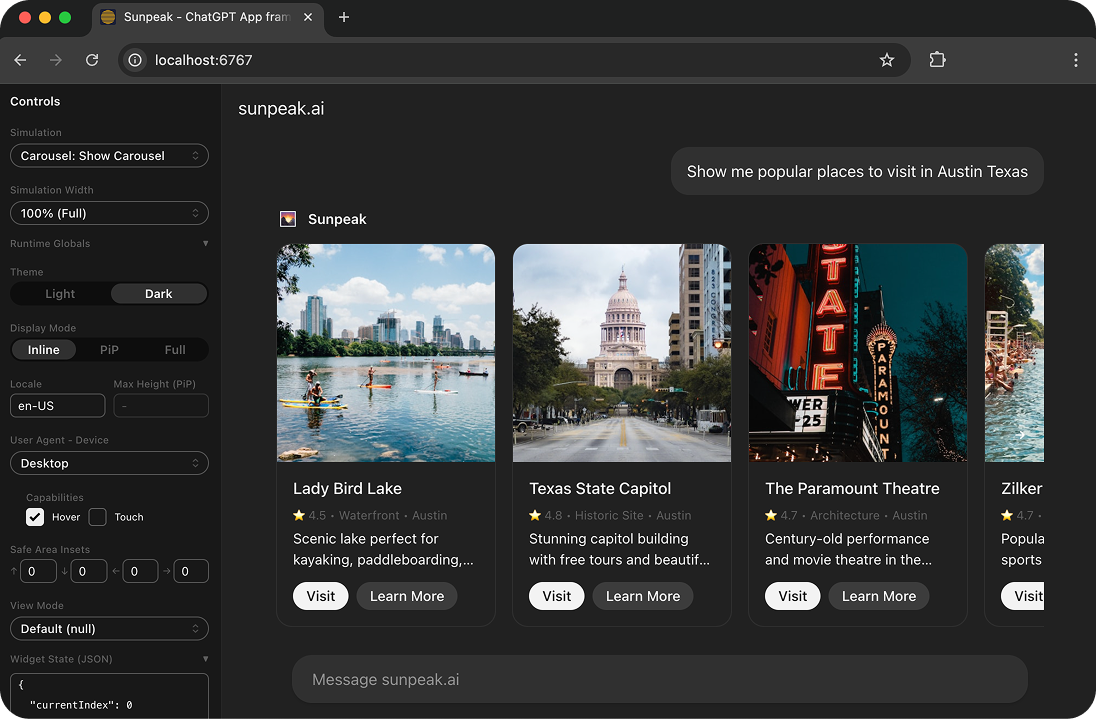
The sunpeak ChatGPT App inspector with testing capabilities.
[Updated 2026-09-04] A ChatGPT App test can pass in React and still fail before its UI loads. The model may select the wrong tool, the MCP server may return an invalid result, the host may reject the resource, the bridge may initialize in a different order, or the layout may break inside a real host iframe.
That is why ChatGPT App testing needs more than a browser test around a component. The useful unit of coverage is a boundary: model to tool, host to server, tool to View, View to host, and deployed server to production host.
TL;DR: Run fast unit and MCP contract tests first. Render deterministic tool states in local ChatGPT and Claude host replicas with Playwright, then add a small visual, accessibility, performance, and security suite. Test the production bundle before merge. Use repeated model evals for tool choice and arguments. Finish with a few real ChatGPT smoke tests in Developer mode, because a local host cannot prove the current production connection or approval flow. In sunpeak, pnpm test runs the default local suite, while pnpm test:visual, pnpm test:eval, and pnpm test:live keep slower checks separate.
The 2026 ChatGPT App Testing Model
ChatGPT Apps now sit inside two related systems:
- The MCP Apps standard defines how an MCP tool points to a
ui://resource, how a host renders that resource in a sandboxed iframe, and how the View communicates with the host over JSON-RPC. - OpenAI distributes MCP-backed apps through Plugins. A plugin can contain an MCP server, skills, or both. The app itself still uses MCP tools, resources, results, and the MCP Apps bridge.
OpenAI’s current UI implementation guide tells new apps to start with the shared MCP Apps fields and ui/* bridge. ChatGPT compatibility APIs such as window.openai remain useful for host-only features, but those calls need capability checks and a fallback.
This split changes how you plan tests. A component test cannot prove tool selection. A protocol test cannot prove iframe layout. A host replica cannot prove that ChatGPT can reach your public endpoint. Give each failure boundary an owner.
| Boundary | Common failure | Best first test |
|---|---|---|
| Model to tool | Wrong tool, missing argument, needless tool call | Repeated eval |
| Host to MCP server | Discovery, auth, transport, or confirmation failure | MCP contract test |
| Tool to View | Wrong structuredContent, missing resource link, fixture drift | Contract plus schema test |
| Resource to sandbox | Invalid MIME type, CSP block, stale bundle | Resource and production-bundle test |
| View to host | Early request, declined capability, missed context patch | Host-runtime E2E test |
| Layout to user | Overflow, focus loss, unreadable theme, inaccessible control | Browser, visual, and accessibility test |
| Deployment to ChatGPT | Public URL, OAuth, scan, cache, or host regression | Live smoke test |
The table also gives you a debugging order. Start at the first failing boundary instead of changing the UI until a blank iframe happens to render.
Set Up the Local Test Project
New sunpeak projects include the inspector and test scripts:
npx sunpeak new chatgpt-app
cd chatgpt-app
pnpm test
For an existing MCP server written in Python, Go, Rust, TypeScript, or another language, scaffold a separate test project:
npx sunpeak test init --server http://localhost:8000/mcp
npx sunpeak test
The generated Playwright config uses the fixtures from sunpeak/test:
// playwright.config.ts
import { defineConfig } from 'sunpeak/test/config';

export default defineConfig();
For a server that needs its own startup command, keep the process under Playwright’s control so test runs start from a known state:
import { defineConfig } from 'sunpeak/test/config';

export default defineConfig({
  server: {
    command: 'python',
    args: ['server.py'],
    env: { APP_ENV: 'test' },
  },
});
By default, this config creates local chatgpt and claude projects, waits for the inspector health check, and closes the server after Playwright finishes. These are host replicas, so they are broad deterministic coverage, not evidence that a real hosted connection works.
Build a Risk-Based Test Inventory
List your Views and the boundaries each View crosses before writing tests. A useful inventory looks like this:
| View or workflow | Data risk | Host risk | User risk | Required evidence |
|---|---|---|---|---|
| Read-only summary | Empty and large results | Inline sizing | Low | Contract, E2E, accessibility |
| Search results | Pagination and stale filters | Theme and mobile | Medium | Contract, simulations, E2E, visual |
| Account settings | Authentication and tenant scope | State restoration | High | Auth, security, E2E, live |
| Purchase confirmation | Money, retries, duplicate writes | Confirmation flow | High | Idempotency, negative cases, live |
| File workflow | Size, type, temporary URLs | Host-only file API | High | Contract, capability fallback, live |
This avoids a generic test pyramid that gives every app the same mix. A chart needs strong visual and performance coverage. A destructive action needs authorization, confirmation, idempotency, and retry tests. A model-routed search tool needs a strong eval set.
Unit Test Pure Logic
Unit tests are best for code that does not need a host:
- Formatters, selectors, reducers, and schema transforms
- Loading, empty, partial, error, and retry state logic
- Authorization policy and tenant filtering
- Input normalization and output mapping
- Capability fallback functions
import { describe, expect, it } from 'vitest';
import { normalizeSearchResult } from './normalize-search-result';

describe('normalizeSearchResult', () => {
  it('preserves stable ids and source labels', () => {
    expect(
      normalizeSearchResult({ id: 'doc_42', title: 'Release plan', source: 'drive' })
    ).toEqual({
      id: 'doc_42',
      title: 'Release plan',
      source: 'drive',
    });
  });
});
Do not mock the entire host and call that a unit test. Once behavior depends on initialization, tool notifications, host context, display modes, or app-initiated tool calls, move it into the host-runtime layer.
Test the MCP Contract Before Rendering UI
Protocol tests are the fastest way to catch failures that would otherwise look like a blank component. Test every tool and every UI resource through the same MCP endpoint a host uses.
The current sunpeak mcp fixture maps directly to MCP operations. listTools() returns a tool array, callTool() returns a tool result, and readResource() returns the resource HTML string:
import { test, expect } from 'sunpeak/test';

test('search exposes a portable MCP App contract', async ({ mcp }) => {
  const tools = await mcp.listTools();
  const search = tools.find((tool) => tool.name === 'search');

  expect(search?._meta?.ui?.resourceUri).toBe('ui://search/results');
  expect(search?.inputSchema).toMatchObject({ type: 'object' });

  const result = await mcp.callTool('search', { query: 'release plan' });
  expect(result.isError).toBeFalsy();
  await expect(result).toHaveStructuredContent({
    results: expect.any(Array),
  });

  const html = await mcp.readResource('ui://search/results');
  expect(html).toContain('<!doctype html>');
});
Add focused checks for:
- Tool name, title, description,
inputSchema, and annotations outputSchemaand the actualstructuredContentshape- Useful model-readable
contentwhen no UI is available _meta.ui.resourceUriand_meta.ui.visibility- A readable
ui://resource withtext/html;profile=mcp-app - Exact CSP and permission allowlists for the resource
isError: trueplus a useful error message for expected failures- Missing, invalid, unauthorized, cross-tenant, and oversized input
- Pagination, duplicate requests, cancellation, retries, and idempotency
MCP Apps are an extension to core MCP, so also test initialization and capability negotiation for each protocol revision your server claims to support. Use the official MCP conformance tooling for wire-level compliance, then keep app-specific metadata and result assertions in your repository. Conformance and app correctness answer different questions.
Keep Result Channels Separate
An MCP tool result can carry model-readable content, typed structuredContent, and host or View metadata in _meta. Tests should prove that each consumer gets the right data.
test('account summary exposes only the intended fields', async ({ mcp }) => {
  const result = await mcp.callTool('account-summary', {});

  expect(result.content).toEqual([
    { type: 'text', text: 'The account has 3 active projects.' },
  ]);
  expect(result.structuredContent).toEqual({
    activeProjectCount: 3,
    projects: expect.any(Array),
  });
  expect(result.structuredContent).not.toHaveProperty('accessToken');
});
Treat _meta as data hidden from the model, not as secret storage. The host and View can receive it. Add explicit negative assertions for tokens, internal authorization policy, unrelated tenant ids, private notes, and raw provider responses.
Pin Deterministic States with Simulations
Simulation files let browser tests render a hard-to-create state without calling a production backend or waiting for a model. A current fixture can define tool input, result, host context, and app-initiated server tool responses:
{
  "tool": "show-results",
  "userMessage": "Find my release plan",
  "toolInput": {
    "query": "release plan"
  },
  "toolResult": {
    "content": [{ "type": "text", "text": "Found one document." }],
    "structuredContent": {
      "results": [{ "id": "doc_42", "title": "Release plan" }]
    }
  },
  "hostContext": {
    "theme": "dark",
    "locale": "en-US",
    "timeZone": "America/Chicago"
  },
  "serverTools": {
    "save-selection": {
      "content": [{ "type": "text", "text": "Saved." }],
      "structuredContent": { "saved": true }
    }
  }
}
Use distinct fixtures for the states users can see:
- Success with realistic data volume and awkward text lengths
- Empty, partial, stale, and paginated results
- Loading, slow response, cancellation, and retry
- Authentication required, authorization denied, and expired session
- Recoverable server error and terminal error
- App-only tool success, error, and argument-dependent responses
- Missing optional host context and unsupported capabilities
Validate fixtures with the same schema as real handler output. Then add at least one browser test per important View that passes non-empty input to renderTool(), because sunpeak uses a non-empty input object to call the real server and no input to select a simulation. That small real-server path catches fixture drift.
Render the View in Host Runtimes
The inspector fixture opens the host replica, calls or simulates the tool, traverses the sandbox iframes, and returns a scoped FrameLocator:
import { test, expect } from 'sunpeak/test';

test('opens a search result', async ({ inspector }) => {
  const result = await inspector.renderTool('show-results');
  const app = result.app();

  await expect(app.getByRole('heading', { name: 'Search results' })).toBeVisible();
  await app.getByRole('button', { name: 'Open Release plan' }).click();
  await expect(app.getByText('Release plan')).toBeVisible();
});

test('renders output from the real local handler', async ({ inspector }) => {
  const result = await inspector.renderTool('show-results', {
    query: 'release plan',
  });

  expect(result.source).toBe('server');
  await expect(result.app().getByText('Release plan')).toBeVisible();
});
Prefer role, label, and visible-text selectors. They describe the behavior users depend on and expose accessibility problems earlier than CSS or implementation selectors.
Test host context as independent axes
Do not reduce host testing to light versus dark. The current MCP Apps host context can vary by theme, locale, time zone, platform, display mode, container dimensions, safe areas, styles, and available capabilities.
Cover the combinations that change behavior:
const cases = [
  { name: 'inline light', theme: 'light', displayMode: 'inline' },
  { name: 'inline dark', theme: 'dark', displayMode: 'inline' },
  { name: 'fullscreen dark', theme: 'dark', displayMode: 'fullscreen' },
] as const;

for (const entry of cases) {
  test(`renders ${entry.name}`, async ({ inspector }) => {
    const result = await inspector.renderTool('show-results', undefined, {
      theme: entry.theme,
      displayMode: entry.displayMode,
    });

    await expect(result.app().getByRole('heading', { name: 'Search results' })).toBeVisible();
  });
}
Every ChatGPT App starts inline. Fullscreen and picture-in-picture are negotiated modes, and a host can decline a request. Test the applied mode rather than assuming the requested mode won. Skip unsupported host-mode pairs explicitly. For example, the current sunpeak templates skip pip in the Claude project.
Also test fixed versus maximum container dimensions. A fixed height means the View owns scrolling inside that area. A maximum height means the View should report content size and avoid creating an unnecessary nested scrollbar.
Test lifecycle order and partial updates
Hosts can initialize the View before all tool data arrives. Host-context change notifications are partial patches, and an app-initiated request can be accepted, declined, interrupted, or completed after the component unmounts.
Add tests for:
- View initializes with no tool input or result.
- Tool input arrives, followed by a delayed result.
- Only one host-context field changes and earlier fields remain intact.
- A display-mode request returns a different applied mode.
- An app-only tool call is pending while the user closes the View.
- A repeated result or notification does not duplicate state.
These cases catch timing bugs that a static component render misses.
Test the Production Resource Bundle
Development HMR can hide bundle and CSP failures. Add a smoke test for built resources before release:
test('loads the production resource', async ({ inspector }) => {
  const result = await inspector.renderTool('show-results', undefined, {
    theme: 'dark',
    prodResources: true,
  });

  await expect(result.app().getByRole('heading', { name: 'Search results' })).toBeVisible();
});
The production check should fail on missing chunks, wrong asset URLs, CSP violations, stale resource versions, initialization exceptions, or an empty iframe. Inspect console errors and failed requests as part of the assertion, not only the final DOM.
Version UI resource URIs when the HTML contract changes. Hosts may cache a resource independently from tool results, so deploying new HTML at an old URI can make a real host run old UI against new data.
Add Visual, Accessibility, Performance, and Security Gates
Rendered correctness is broader than “the button is visible.” Use focused checks based on user risk.
Visual regression
Run the visual suite with:
pnpm test:visualCapture stable app states, not the entire inspector shell. Freeze time, ids, animation, and network data. Keep baselines for important host, theme, viewport, and display-mode combinations, then review changed images like code.
Accessibility
Check keyboard order, visible focus, accessible names, dialog focus containment, reduced motion, color contrast, zoom, and screen-reader status updates. Inline ChatGPT UI should remain compact: OpenAI’s UI guidelines limit inline cards to two primary actions and discourage nested navigation and nested scrolling.
Performance
Measure server response time, resource size, first useful render, bridge startup, and large-result interaction. Test cold and warm resource loads because host caching changes the path. Set budgets in CI for the metrics your users feel rather than relying on one workstation trace.
Security
Test missing, expired, wrong-issuer, wrong-audience, and insufficient-scope tokens. Verify tenant isolation on reads and writes. Exercise malicious text, URLs, filenames, and tool output. Confirm CSP allows only the required domains, app-only tools reject calls from the wrong boundary, destructive actions require confirmation, and retries do not duplicate writes.
Evaluate Model Tool Choice
Browser tests start after a tool is selected, so they cannot tell you whether the model will select it. OpenAI’s current plugin testing guide recommends direct, indirect, follow-up, write, and unsupported requests, with the selected tool, arguments, result, errors, and confirmation behavior recorded.
Turn that set into repeatable evals:
import { defineEval } from 'sunpeak/eval';

export default defineEval({
  runs: 5,
  threshold: 0.8,
  cases: [
    {
      name: 'direct search request',
      prompt: 'Find my release plan',
      expect: { tool: 'search', args: { query: 'release plan' } },
    },
    {
      name: 'follow-up uses selected app state',
      prompt: 'Open this one',
      appContext: {
        structuredContent: { selectedDocumentId: 'doc_42' },
      },
      expect: { tool: 'open-document', args: { documentId: 'doc_42' } },
    },
    {
      name: 'unsupported request calls no tool',
      prompt: 'Write a poem about database indexes',
      assert(result) {
        if (result.toolCalls.length !== 0) throw new Error('Expected no tool call');
      },
    },
  ],
});
Run evals when tool names, descriptions, schemas, annotations, server instructions, or model-visible App Context changes. Keep pass rates by model and prompt class. A single green run does not measure a probabilistic system.
Evals need provider credentials and can cost money, so keep them out of the fast local suite:
pnpm test:evalTest in Real ChatGPT
Local replicas provide broad coverage, but only a real host can prove public reachability, current metadata scanning, OAuth discovery, confirmation UI, host caching, and production iframe behavior.
OpenAI’s September 2026 flow is:
- Expose a Streamable HTTP MCP endpoint over public HTTPS or use Secure MCP Tunnel during development.
- Inspect tools directly with
npx @modelcontextprotocol/inspector@latest. - In ChatGPT, open Settings, select Security and login, and enable Developer mode.
- Open ChatGPT Plugins, add the MCP connection, and review the discovered tools and metadata.
- Run direct, indirect, follow-up, write, and unsupported prompts.
- Test both the component and its model-readable fallback.
sunpeak’s current live fixture automates ChatGPT:
import { test, expect } from 'sunpeak/test/live';

test('search renders in real ChatGPT', async ({ live }) => {
  const app = await live.invoke('show-results');
  await expect(app.getByRole('heading', { name: 'Search results' })).toBeVisible();
});
Run it with pnpm test:live. Keep the browser session and credentials out of version control. For Claude, use the local replica for broad coverage and a separate narrow real-host smoke path until your automation stack has a Claude live adapter.
Live tests should be few and high value. A practical release set checks connection and discovery, one read flow, one authenticated flow, one high-risk write or confirmation flow, and one UI capability that depends on the real host.
Put the Gates in CI
Use deterministic checks on every pull request:
name: MCP App tests
on: [push, pull_request]

jobs:
  test:
    runs-on: ubuntu-latest
    steps:
      - uses: actions/checkout@v5
      - uses: pnpm/action-setup@v4
      - uses: actions/setup-node@v4
        with:
          node-version: '22'
          cache: 'pnpm'
      - run: pnpm install --frozen-lockfile
      - run: pnpm exec playwright install chromium --with-deps
      - run: pnpm test
      - run: pnpm test:visual
Put external checks in separate release or scheduled jobs:
- Model evals with pinned model ids and explicit thresholds
- Real ChatGPT smoke tests with a managed browser session
- Real Claude smoke tests through your chosen path
- Production endpoint, OAuth, privacy, terms, CSP, and asset checks
Do not update visual baselines automatically in CI. Do not hide flaky live tests behind unlimited retries. Record traces, screenshots, server logs, protocol revisions, tool metadata, resource versions, and model ids so a failure can be reproduced.
Use an Explicit Release Gate
A release candidate is ready when every claimed boundary has evidence:
| Gate | Minimum evidence |
|---|---|
| Core MCP | Initialization, discovery, tool calls, errors, and claimed revision pass |
| MCP Apps contract | Resource link, MIME type, result channels, CSP, visibility, and lifecycle pass |
| Host replicas | Every important View passes in supported hosts and modes |
| Production resources | Built HTML loads with no console, request, CSP, or initialization errors |
| UX | Keyboard, focus, mobile, theme, overflow, and selected visual baselines pass |
| Security | Auth failures, tenant isolation, malicious input, confirmation, and retry tests pass |
| Model routing | Positive, negative, ambiguous, and App Context eval thresholds pass |
| Real hosts | Narrow production-like smoke paths pass before release |
OpenAI requires a publicly accessible production MCP server, exact CSP domains for UI, and working review credentials for public submission. A test tunnel is useful in Developer mode, but it is not a submission endpoint. Keep a pre-submission run that exercises the exact URL, metadata, authentication, and test cases you plan to give reviewers.
Debug Failures in Boundary Order
When an app is blank or wrong, inspect the path in this order:
- Did core MCP initialize with the expected protocol revision and capabilities?
- Did
tools/listexpose the tool with the expected schema and annotations? - Did
tools/callreturn the expectedcontent,structuredContent,_meta, andisError? - Does
_meta.ui.resourceUripoint to a readableui://resource? - Does the resource use the MCP App HTML MIME type and an exact CSP?
- Did the View complete
ui/initializeand receive tool notifications? - Did the host provide or omit a capability your UI assumed?
- Did the browser block an asset, request, script, font, or iframe action?
- Does the same failure occur with the built resource and in a real host?
Use Playwright traces for interaction and iframe timing. Use MCP logs for discovery and result failures. Use browser console and network records for CSP and resource failures. Use eval output for model routing. These artifacts point to different owners, so keep them separate in CI.
The sunpeak testing framework packages the local protocol and host-runtime layers into one workflow. Run npx sunpeak test init --server <your-mcp-url> against an existing server, or start a new app with npx sunpeak new. Keep the fast suite broad, the external suite narrow, and every release claim tied to evidence from the boundary it depends on.
Get Started
npx sunpeak newFurther Reading
- sunpeak MCP testing framework
- sunpeak MCP App Inspector
- MCP App testing strategy
- MCP App conformance testing
- E2E testing MCP Apps with Playwright
- Mocking and stubbing MCP App tests
- Visual regression testing for MCP Apps
- Pre-submission testing for MCP Apps
- sunpeak testing documentation
- Official MCP Apps testing guide
- MCP Apps specification (2026-01-26)
- OpenAI: connect and test your plugin
- OpenAI Plugin UI guidelines
Frequently Asked Questions
How do I test a ChatGPT App locally without a paid ChatGPT account?
Use a local MCP Apps host replica or reference host. sunpeak can connect to an MCP server in any language with "npx sunpeak inspect --server http://localhost:8000/mcp", then run Playwright tests against replicated ChatGPT and Claude runtimes without host accounts or model credits. Keep one narrow real ChatGPT check before release because a replica cannot prove the current production connection, approval, and iframe behavior.
What should a ChatGPT App test suite cover?
Cover six boundaries: MCP discovery and tool results, UI resource metadata and security policy, View-to-host bridge behavior, rendered states across supported host contexts, model tool selection, and the deployed connection in a real host. Unit, contract, inspector E2E, visual, eval, and live tests each own a different boundary, so one passing layer cannot replace the others.
What is the difference between an MCP contract test and an MCP App E2E test?
A contract test calls MCP methods directly and checks tools, schemas, annotations, resource URIs, resource HTML, result channels, and error shapes. An E2E test renders the tool result in a host runtime and checks what the user can see and do inside the iframe. Contract tests explain server failures quickly, while E2E tests catch lifecycle, layout, host-context, and interaction bugs.
What are simulation files in MCP App testing?
Simulation files are deterministic JSON fixtures for a rendered tool state. They can define tool input, tool result, host context, and mocked app-initiated server tool calls. Use separate simulations for success, empty, partial, error, unauthorized, large-data, and follow-up states, then keep at least one real-server E2E test per important View so fixtures cannot drift away from handler output.
How do I test ChatGPT App display modes and host context?
Test only the modes your View declares and each host supports. Every ChatGPT App starts inline; fullscreen and picture-in-picture are requested capabilities, and a host may decline a request. Cover theme, locale, time zone, platform, fixed and maximum container dimensions, safe areas, and mobile viewports. In sunpeak, pass displayMode and theme to inspector.renderTool(), and skip unsupported host-mode pairs such as Claude picture-in-picture.
How should I test model tool selection for a ChatGPT App?
Build an eval set with direct prompts, indirect prompts, follow-ups that depend on model-visible App Context, ambiguous requests, and requests that should not call any tool. Record the selected tool, arguments, confirmation behavior, and pass rate over repeated runs. Rerun the set whenever tool names, descriptions, schemas, annotations, or server instructions change.
Which ChatGPT App tests should run in CI?
Run deterministic unit, MCP contract, inspector E2E, security, accessibility, and selected visual tests on pull requests. Test the production UI bundle before merge. Put model evals and real-host checks in separate release or scheduled jobs because they depend on provider keys, accounts, browser sessions, network access, and host behavior outside your repository.
How do I debug a blank ChatGPT App iframe?
Debug in protocol order. Confirm initialization and capability negotiation, verify tools/list metadata, call the tool directly, inspect content, structuredContent, isError, and _meta, read the referenced ui:// resource, check its MCP App MIME type and CSP, then inspect View initialization and browser console errors. Only debug component CSS after those boundaries pass.
