ChatGPT App Tutorial: Build Your First App in 5 Minutes (October 2026)
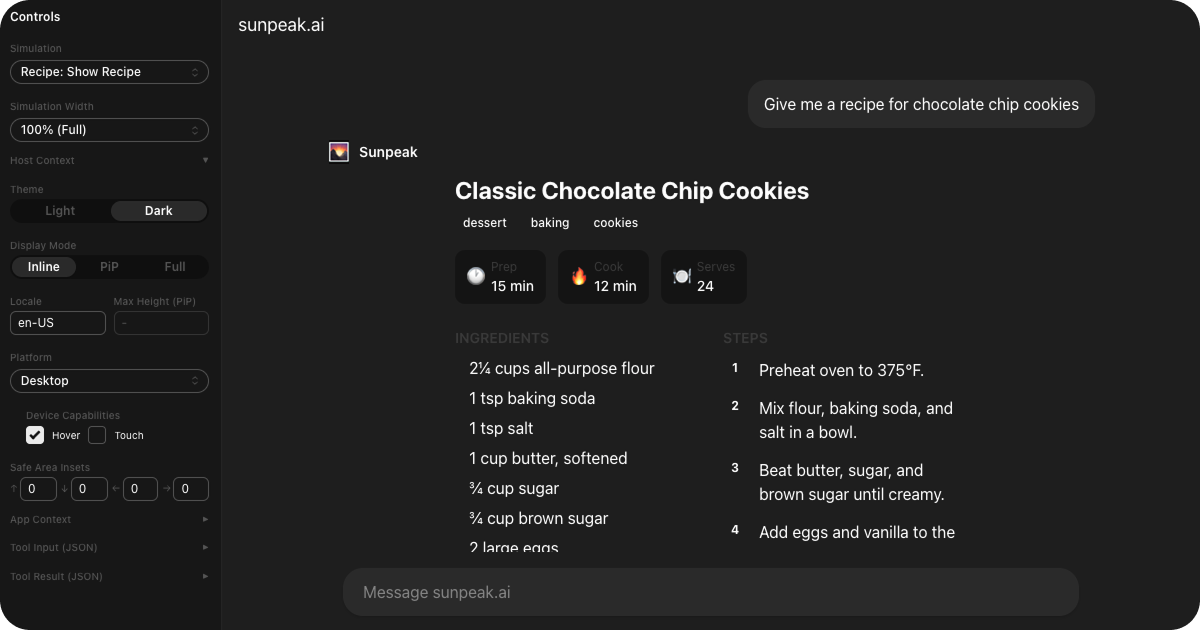
ChatGPT App for cooking recipes.
TL;DR: With Node.js 22.12+, scaffold a project with npx sunpeak new recipe-app, add a React resource, link an MCP tool to it, and load a simulation in the local inspector. You can build the first UI without a ChatGPT account. Before release, call the real tool and test the deployed server in ChatGPT.
A ChatGPT App is a web application that renders inside ChatGPT’s UI. When ChatGPT calls a tool, instead of returning the result as plain text only, your app can render it as interactive UI: cards, forms, charts, whatever you build with React. Under the hood, ChatGPT Apps use the MCP Apps pattern, so the same app architecture can also run on Claude, Goose, VS Code, and other MCP-compatible hosts.
A recipe is a good first app because the model can describe it in text while the UI can show an ingredient checklist and numbered steps. The tool should still return a readable answer when a client does not render the card, as OpenAI’s current UI guide recommends.
In this tutorial, you will build that recipe card from scratch. By the end, you will have a working app running in a local ChatGPT inspector that you can extend, test, and ship to production.
What This Tutorial Builds
There are three pieces to keep straight:
- The tool accepts an input, returns a text fallback in
content, and returns recipe data instructuredContent. - The resource is the React UI the host renders. Its Tool link becomes
_meta.ui.resourceUriin the MCP Tool descriptor. - The simulation is local fixture data for UI work. It does not call your real handler, so test both paths before you ship.
The shared MCP Apps bridge carries tool data into the iframe. ChatGPT-specific features can be added later through sunpeak/chatgpt when a use case needs them.
Prerequisites
You need Node.js 22.12 or later and pnpm, matching the current sunpeak quickstart. You do not need a ChatGPT account for this local tutorial. sunpeak’s local inspector replicates the ChatGPT-style runtime for development, including display modes, theme changes, safe areas, and simulated tool calls.
Step 1: Create a New Project
Scaffold a project:
npx sunpeak new recipe-appThe scaffold creates a project with TypeScript, a sample resource, simulation files, and a local inspector. It also sets up the testing framework so you can write unit tests, e2e tests, and visual regression tests from the start.
Change into the new directory before continuing:
cd recipe-appYou should see src/resources/ for UI code and tests/simulations/ for mock data. Use the package scripts in the generated project for the remaining commands.
Step 2: Write Your First Resource
A resource is a React component that renders tool data from ChatGPT. Each resource has two parts: a config object that describes it and a component that renders it.
sunpeak auto-discovers resources by directory convention. Any file at src/resources/{name}/{name}.tsx becomes a resource. Create the file src/resources/recipe/recipe.tsx:
import { useToolData, SafeArea } from 'sunpeak';
import type { ResourceConfig } from 'sunpeak';

export const resource: ResourceConfig = {
  title: 'Recipe',
  description: 'Display a recipe with ingredients and steps',
};

interface RecipeData {
  title: string;
  prepTime: string;
  cookTime: string;
  servings: number;
  ingredients: string[];
  steps: string[];
  tags: string[];
}

export function RecipeResource() {
  const { output, isLoading, isError } = useToolData<unknown, RecipeData>();

  if (isLoading) return <div className="p-6 text-gray-400">Loading recipe...</div>;
  if (isError) return <div className="p-6 text-red-500">Failed to load recipe.</div>;
  if (!output) return null;

  return (
    <SafeArea className="p-6 font-sans max-w-lg mx-auto">
      <h1 className="text-2xl font-bold mb-1">{output.title}</h1>

      <div className="flex gap-2 mb-4 mt-2">
        {output.tags.map((tag) => (
          <span key={tag} className="px-2 py-0.5 bg-amber-100 text-amber-800 rounded-full text-xs font-medium">
            {tag}
          </span>
        ))}
      </div>

      <div className="flex gap-3 text-sm mb-6">
        <div className="flex items-center gap-1.5 bg-gray-50 rounded-lg px-3 py-2">
          <span className="text-gray-400">🕐</span>
          <div>
            <div className="text-gray-400 text-xs">Prep</div>
            <div className="font-medium">{output.prepTime}</div>
          </div>
        </div>
        <div className="flex items-center gap-1.5 bg-gray-50 rounded-lg px-3 py-2">
          <span className="text-gray-400">🔥</span>
          <div>
            <div className="text-gray-400 text-xs">Cook</div>
            <div className="font-medium">{output.cookTime}</div>
          </div>
        </div>
        <div className="flex items-center gap-1.5 bg-gray-50 rounded-lg px-3 py-2">
          <span className="text-gray-400">🍽️</span>
          <div>
            <div className="text-gray-400 text-xs">Serves</div>
            <div className="font-medium">{output.servings}</div>
          </div>
        </div>
      </div>

      <div className="grid grid-cols-1 sm:grid-cols-2 gap-6">
        <div>
          <h2 className="text-sm font-semibold uppercase tracking-wide text-gray-400 mb-2">Ingredients</h2>
          <ul className="space-y-1.5">
            {output.ingredients.map((item, i) => (
              <li key={i} className="flex items-start gap-2">
                <span className="mt-1.5 h-1.5 w-1.5 rounded-full bg-amber-400 shrink-0" />
                {item}
              </li>
            ))}
          </ul>
        </div>

        <div>
          <h2 className="text-sm font-semibold uppercase tracking-wide text-gray-400 mb-2">Steps</h2>
          <ol className="space-y-3">
            {output.steps.map((step, i) => (
              <li key={i} className="flex gap-3">
                <span className="flex items-center justify-center h-6 w-6 rounded-full bg-amber-400 text-white text-xs font-bold shrink-0">
                  {i + 1}
                </span>
                <span className="pt-0.5">{step}</span>
              </li>
            ))}
          </ol>
        </div>
      </div>
    </SafeArea>
  );
}
Here’s what each piece does:
resourcedescribes the UI. sunpeak uses it to register an MCP App Resource with the server.useToolDatais a React hook that gives your component the data ChatGPT sent. The generic types<unknown, RecipeData>mean we don’t care about the tool input, but we expect the output to match ourRecipeDatashape. It also returnsinput,isLoading,isError, andisCancelledfor handling different states.SafeAreawraps your content with proper insets so it renders correctly across display modes (inline, picture-in-picture, and fullscreen).- The loading and error checks handle the brief moment before data arrives and any failures.
The rest is standard React with Tailwind classes. The component uses the shared MCP Apps bridge, so it can run in other compatible hosts, subject to each host’s supported features and policies.
If you build the server layer by hand, put the UI Resource URI in the Tool descriptor’s _meta.ui.resourceUri. The Tool result carries recipe data; it does not choose the UI Resource. sunpeak handles that registration and linkage for this tutorial.
Step 3: Write the Tool
A resource renders the UI. A Tool triggers it. When ChatGPT decides to call your tool, the tool handler runs, returns structured data, and ChatGPT renders your resource with that data.
sunpeak auto-discovers tools from src/tools/*.ts. Create src/tools/show-recipe.ts:
import { z } from 'zod';
import type { AppToolConfig, ToolHandlerExtra } from 'sunpeak/mcp';

export const tool: AppToolConfig = {
  resource: 'recipe',
  title: 'Show Recipe',
  description: 'Show the demo chocolate chip cookie recipe when asked for it',
  annotations: { readOnlyHint: true },
};

export const schema = {
  query: z.string().describe('Recipe name or search term'),
};

type Args = z.infer<z.ZodObject<typeof schema>>;

export default async function (args: Args, _extra: ToolHandlerExtra) {
  if (!/chocolate chip cookies/i.test(args.query)) {
    return {
      content: [
        {
          type: 'text' as const,
          text: 'This demo only has a chocolate chip cookie recipe.',
        },
      ],
      isError: true,
    };
  }

  const recipe = {
    title: 'Classic Chocolate Chip Cookies',
    prepTime: '15 min',
    cookTime: '12 min',
    servings: 24,
    ingredients: ['2¼ cups flour', '1 cup butter', '2 cups chocolate chips'],
    steps: ['Preheat oven to 375°F.', 'Mix dry ingredients.', 'Bake 9-11 minutes.'],
    tags: ['dessert', 'baking', 'cookies'],
  };

  return {
    content: [
      {
        type: 'text' as const,
        text:
          `${recipe.title}: ${recipe.prepTime} prep, ` +
          `${recipe.cookTime} cook, ${recipe.servings} servings.`,
      },
    ],
    structuredContent: recipe,
  };
}
Three exports, each with a specific job:
toollinks this tool to the recipe resource and describes it to ChatGPT. Theresourcefield connects it to the component you created in Step 2. Theannotations.readOnlyHinttells the model this tool only reads data (no side effects).schemadefines the tool’s input parameters using Zod. ChatGPT uses the descriptions to decide what arguments to pass. sunpeak converts this to the JSON Schema format that MCP requires.- The default export is the handler that runs when ChatGPT calls the tool. This demo supports only chocolate chip cookies, so other queries get a clear tool error. For a real recipe search, replace the fixed data with an authenticated API or database lookup and validate its response.
When ChatGPT calls show-recipe, the MCP server runs this handler and sends the structuredContent to your RecipeResource component via useToolData.
The content text gives the model and clients without UI a usable summary, while structuredContent supplies the card data. Keep secrets and server-only IDs out of both. _meta can carry UI-only state, but the iframe receives it, so it is not a secret store. For production, declare an outputSchema and verify your structured result matches it.
Step 4: Add Test Data
The inspector needs mock data to render your resource. This is a simulation file: a JSON file that describes what the user said, what tool ChatGPT called, and what data came back.
Simulations reference tools by name. Create tests/simulations/recipe-cookies.json:
{
  "tool": "show-recipe",
  "userMessage": "Give me a recipe for chocolate chip cookies",
  "toolInput": {
    "query": "chocolate chip cookies"
  },
  "toolResult": {
    "content": [
      {
        "type": "text",
        "text": "Classic Chocolate Chip Cookies: 15 min prep, 12 min cook, 24 servings."
      }
    ],
    "structuredContent": {
      "title": "Classic Chocolate Chip Cookies",
      "prepTime": "15 min",
      "cookTime": "12 min",
      "servings": 24,
      "ingredients": ["2¼ cups flour", "1 cup butter", "2 cups chocolate chips"],
      "steps": ["Preheat oven to 375°F.", "Mix dry ingredients.", "Bake 9-11 minutes."],
      "tags": ["dessert", "baking", "cookies"]
    }
  }
}
The key field is toolResult.structuredContent. That object is what useToolData returns as output in your component. The fixture matches the successful handler result, including its text fallback, so a local preview reflects the real Tool contract.
You can create multiple simulation files for the same tool to test different scenarios. For example, a recipe-unsupported.json can exercise the handler’s error path. sunpeak’s testing framework also uses fixtures for unit tests and E2E tests.
Create tests/simulations/recipe-unsupported.json to check the visible error state:
{
  "tool": "show-recipe",
  "userMessage": "Show me a pasta recipe",
  "toolInput": { "query": "pasta" },
  "toolResult": {
    "content": [{ "type": "text", "text": "This demo only has a chocolate chip cookie recipe." }],
    "isError": true
  }
}
Then try a long title, an empty ingredient list, and enough steps to require scrolling. Those fixtures catch layout bugs that a single happy-path card misses. Simulations test the UI shape, while an MCP tool call tests your handler and authorization.
Step 5: Run the Inspector
Start the development server:
pnpm devThis launches two servers: the inspector at http://localhost:3000 and the MCP server at http://localhost:8000. Both support hot reloading, so changes to your components and tool handlers reflect immediately.
Open http://localhost:3000. Select recipe-cookies if the starter project opens a different simulation. You should see the user message and recipe card in the ChatGPT-style inspector. Switch to recipe-unsupported and check that the error message is readable.
From here, try the display modes your target host supports. Toggle dark mode and resize to a narrow viewport. The example uses fixed gray and amber colors, so use host color tokens or theme-aware classes before shipping it as a polished app.
Check the real tool, not just the fixture
Simulations do not prove that your MCP server registered the Tool or returned the right data. In the inspector, call show-recipe with {"query":"chocolate chip cookies"} against the running server. Confirm its content summary, structuredContent shape, and linked UI Resource. Call it again with {"query":"pasta"} and confirm the readable error result.
If a Tool works but the card stays blank, inspect the Tool descriptor’s _meta.ui.resourceUri, read that ui:// Resource, and check its text/html;profile=mcp-app MIME type and iframe console. The MCP App conformance guide gives you a repeatable checklist for this contract.
How It Works
The data flow in a ChatGPT App follows the MCP Apps pattern:
- The user asks ChatGPT for the cookie recipe.
- ChatGPT selects the Tool
show-recipeand sends its input to your MCP server. - The Tool descriptor links to a UI Resource, which ChatGPT fetches and renders in a sandboxed iframe.
- The Tool handler returns readable
contentplus recipe data instructuredContent. ChatGPT sends the Tool result through the MCP Apps bridge, anduseToolDatagives the data to your component.
Your resource is pure UI. It usually should not call private APIs or run server logic directly. ChatGPT handles the model side, your MCP server handles data access, and your resource handles presentation. This separation is why MCP Apps are portable across hosts: the same component works in ChatGPT, Claude, Goose, VS Code, Postman, and MCPJam from a single codebase. The MCP Apps introduction covers this architecture in detail.
During development, the simulation file stands in for a Tool result. In production, ChatGPT sends real Tool data through its host bridge. Matching shapes make the transition easier, but the live host may differ in permissions, layout, or optional APIs, so test there too.
Before You Ship It
The tutorial app is intentionally small, but the same checklist applies to a production ChatGPT App.
- Validate every tool input and output shape. Zod schemas help the model call the right tool, and output schemas help prevent malformed
structuredContentfrom breaking your UI. - Test display modes, dark mode, narrow widths, loading states, error states, and cancelled states. Host containers are not the same as a full browser tab.
- Keep secrets and server-only IDs on the MCP server.
_metais hidden from the model but reaches the iframe, so it cannot protect a credential. - Run local tests first, then live-host tests against the real host flow before submission.
- Document what the tool does in plain language. Tool descriptions and schema descriptions are part of how the model decides when to call your app.
For a live test, build and run the production server with pnpm build && pnpm start, then deploy it at a stable HTTPS /mcp endpoint. OpenAI’s plugin quickstart shows how to add a custom MCP server as a personal plugin and test it in ChatGPT. For public distribution, the current submission flow starts with a plugin ZIP that declares the MCP server. The portal then connects to and scans the server, verifies its domain, and collects review materials. See the pre-submission testing guide before uploading.
Make It Your Own
A few ideas to try now that you have a working app.
Add state with useAppState
Let the user check off ingredients as they cook. useAppState works like useState but syncs state back to ChatGPT, so the model knows what the user has done.
import { useToolData, useAppState, SafeArea } from 'sunpeak';

// Inside your component:
const [checked, setChecked] = useAppState<Record<number, boolean>>({});

// Then in your ingredients list:
{output.ingredients.map((item, i) => (
  <li key={i}
    className={`flex items-start gap-2 cursor-pointer ${checked[i] ? 'line-through text-gray-400' : ''}`}
    onClick={() => setChecked({ ...checked, [i]: !checked[i] })}
  >
    <span className={`mt-1.5 h-1.5 w-1.5 rounded-full shrink-0 ${checked[i] ? 'bg-gray-300' : 'bg-amber-400'}`} />
    {item}
  </li>
))}
Respond to display mode
Use useDisplayMode to adjust your layout when the user switches from inline to fullscreen. The display mode reference covers every mode and its CSS behavior.
Add host-aware styling
Your app inherits CSS variables from the host for theme-aware styling. Use useTheme to read whether the user is in light or dark mode and adjust colors accordingly.
Write tests
sunpeak includes a full testing framework. Write unit tests with Vitest to verify your component renders correctly for each simulation. Add snapshot tests to catch unintended UI changes. Run pnpm test:unit to execute them locally, or set up CI/CD to run them on every push.
Add another resource
Create src/resources/meal-plan/meal-plan.tsx with a weekly meal planner UI. Each resource is independent, and sunpeak auto-discovers new ones from the directory structure.
Get Started
npx sunpeak newFurther Reading
- ChatGPT App framework
- MCP App framework
- MCP testing framework
- How to run your ChatGPT App locally - inspector, simulations, and dev server
- How to Build an MCP App - cross-host architecture guide
- Complete guide to testing ChatGPT Apps - unit, e2e, visual, and live tests
- MCP App tool results - content, structuredContent, and _meta
- MCP App outputSchema - validate structuredContent before hosts see it
- MCP App TypeScript types - connect schemas and useToolData
- ChatGPT App display mode reference - inline, PiP, and fullscreen
- Interactive MCP Apps with useAppState - two-way state management
- Debugging ChatGPT Apps - common runtime and bridge errors
- Pre-submission testing for MCP Apps - reviewer cases and live-host checks
- MCP App tool metadata - resourceUri and app-only tools
- sunpeak quickstart
- sunpeak MCP Apps documentation
- OpenAI plugin UI guide - MCP Apps bridge and ChatGPT extensions
- OpenAI plugin quickstart - connect and test a personal plugin
- OpenAI plugin submission - package, scan, review, and publish
- Official MCP Apps documentation
Frequently Asked Questions
Do I need a paid ChatGPT account to build a ChatGPT App?
No. You can build the MCP server and UI and use sunpeak’s local ChatGPT-style inspector without a paid ChatGPT account. The inspector is a replica for development, so connect the deployed MCP server to ChatGPT and test the installed plugin before public submission. The current ChatGPT plugin quickstart uses Add custom MCP server from ChatGPT Plugins for a personal plugin.
What is the fastest way to start building a ChatGPT App in 2026?
Use Node.js 22.12 or newer. Run "npx sunpeak new recipe-app", change into the new directory, and run "pnpm dev". The scaffold starts an inspector at localhost:3000 and an MCP server at localhost:8000 by default. Add a resource, a tool that points to it, and a simulation file to render your first recipe card locally.
What is a resource in a ChatGPT App?
A resource is a React component paired with metadata that tells the host what UI to render. It receives tool result data, usually structuredContent, and renders that data as interactive UI inside the chat. Each resource lives in its own directory under src/resources/ and is auto-discovered by sunpeak. Under the hood, sunpeak registers an MCP App resource URI so the same resource can run in ChatGPT, Claude, and other MCP-compatible hosts.
What is a simulation file and why do I need one?
A simulation file is JSON under tests/simulations/ with a user message, tool input, and mock tool result. The local inspector uses it to render repeatable UI states without a live ChatGPT session. It does not execute the real tool handler, so also call the actual MCP tool and check that its result has the same shape.
How does useToolData work in a ChatGPT App?
useToolData is a React hook from sunpeak that gives your component access to the data ChatGPT sends when it calls a tool. You call it with optional type parameters for the tool input and output shapes. It returns output, input, isLoading, isError, isCancelled, and other status fields. Your component renders output as UI. The same hook works across ChatGPT, Claude, and other MCP App hosts.
How do I test a ChatGPT App locally?
Run "pnpm dev" and open the local inspector at localhost:3000. Switch among supported display modes, themes, and screen sizes, then try both a normal recipe and an error fixture. Run unit, E2E, and visual tests locally; before release, test the deployed MCP server and UI in ChatGPT because a local replica cannot prove live-host behavior.
What is the difference between a ChatGPT App and an MCP App?
A ChatGPT App is an MCP App that runs inside ChatGPT. MCP Apps define how interactive resources, tool results, and host bridges work across AI hosts. When you build with sunpeak, you build a portable MCP App first, then add ChatGPT-specific behavior through sunpeak/chatgpt imports when you need it. That keeps the base app usable across ChatGPT, Claude, Goose, VS Code, Postman, MCPJam, and other MCP-compatible hosts.
How do I deploy a ChatGPT App to production?
Run "pnpm build && pnpm start" to test the production MCP server locally, then deploy it at a stable HTTPS /mcp endpoint. Connect that server through ChatGPT Plugins and test an installed personal plugin. For public distribution, package the MCP connection in a plugin ZIP, upload it in the OpenAI Platform, connect and scan the server, and complete the required review materials.