ChatGPT App Display Mode Reference (September 2026)
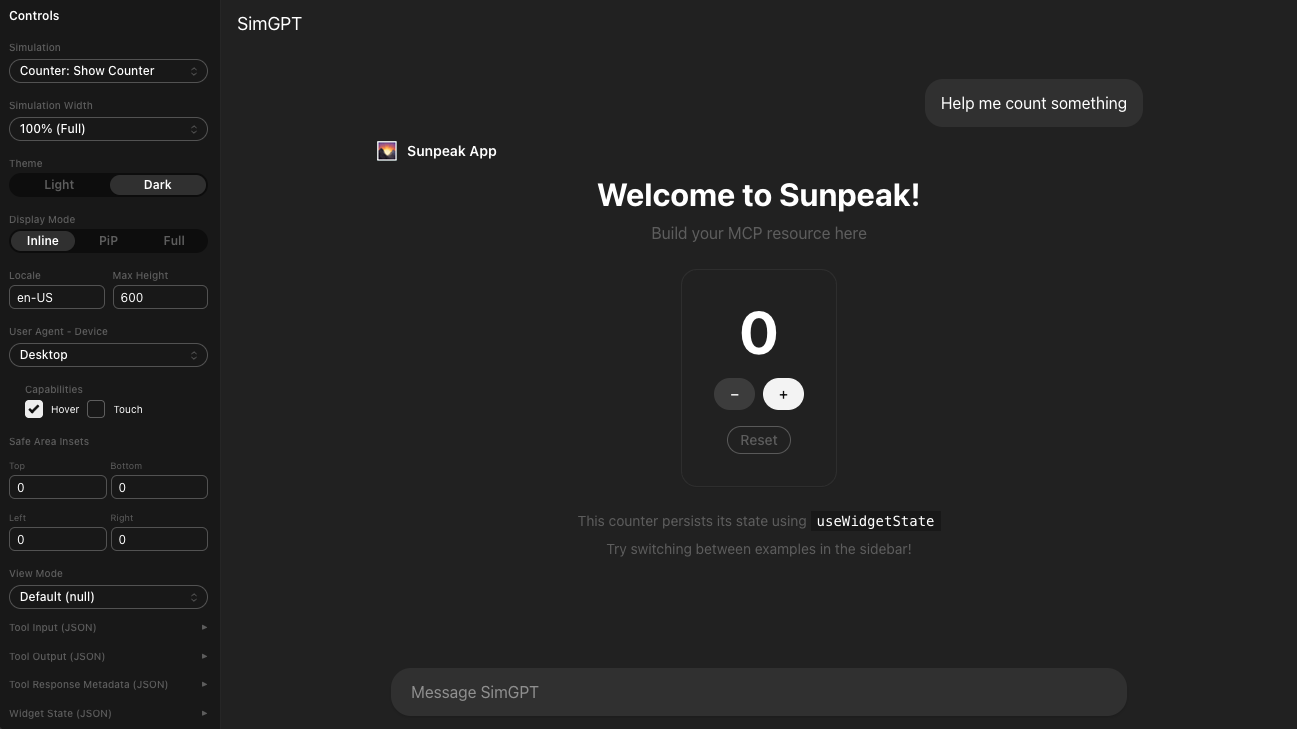
ChatGPT App in inline display mode on wide screen.
ChatGPT Apps can appear inline in a conversation, expand to fullscreen, or stay visible in a picture-in-picture window. Those three names are easy to remember. The harder part is building one MCP App resource that behaves correctly when the host accepts, declines, or later changes a mode, while also changing the available dimensions and safe areas.
The stable MCP Apps specification defines the portable protocol. OpenAI’s current plugin UI guidelines define how the same modes behave in ChatGPT. This reference separates those two contracts so you can implement both without tying all layout logic to one host.
TL;DR: Every ChatGPT App starts inline. A View declares the modes it can render, reads the modes the host offers, and requests a change through ui/request-display-mode. The host has the final decision. Render from the current displayMode, treat maxHeight as a limit rather than a fixed height, keep one scroll owner in fullscreen, and test accepted, declined, and host-initiated changes.
Display modes at a glance
The protocol values are lowercase: inline, fullscreen, and pip.
| Mode | ChatGPT behavior | Good fit | Main layout rule |
|---|---|---|---|
inline | Every app starts in the conversation before the model response | Focused result, confirmation, small chart, short form, carousel | Let content set height, avoid nested scrolling |
fullscreen | Uses the main surface while the ChatGPT composer and system controls remain available | Map, editor, detailed browser, multi-step workflow | Respect safe areas and create one internal scroll owner |
pip | Pins a floating app surface while the conversation continues | Live session, video, game, timer, ongoing status | Keep the active state and a few controls visible |
Mode does not tell you an exact pixel size. The host reports that separately through containerDimensions, and it can change the dimensions when the mode, window, orientation, or surrounding UI changes.
Start with the smallest surface that lets a user finish the task. OpenAI recommends inline for the first render, then more space only when the workflow needs it. That also gives the model and user a useful conversational result before the app asks to occupy more of the screen.
The display-mode contract has three parts
There are three related values, not one:
appCapabilities.availableDisplayModeslists every mode the View knows how to render.HostContext.availableDisplayModeslists modes the host can provide in the current surface.HostContext.displayModeis the mode the host currently applies.
The View sends its capabilities during ui/initialize:
{
  "method": "ui/initialize",
  "params": {
    "appInfo": { "name": "project-board", "version": "1.0.0" },
    "appCapabilities": {
      "availableDisplayModes": ["inline", "fullscreen", "pip"]
    },
    "protocolVersion": "2026-01-26"
  }
}
The host returns its capabilities and current context. A host may support only a subset of the three modes, and availability can depend on the client, platform, or current window. The View should show a transition control only when the target appears in the host list and the View declared support for it.
These requirements prevent two common failures. A host cannot switch the View into a mode the View did not declare, and a View should not request a mode the host did not offer. If a requested mode is unavailable, the host should return the current mode. Even when the mode is available, the host can return a different mode from the one requested.
Treat the host list as runtime capability data. Do not assume that a host supports all three modes because it implements MCP Apps, and do not branch on a product name. A capability check will keep working when a host adds or removes a mode on one platform.
A mode change is an asynchronous state transition
ui/request-display-mode is a request, not a command. A reliable transition follows this sequence:
- The user chooses an expand, collapse, or keep-visible action.
- The View checks
HostContext.availableDisplayModes. - The View sends
ui/request-display-modewith the target mode. - The host responds with the mode it actually applied.
- The host can also send
ui/notifications/host-context-changedwith a partial context patch. - The View renders from its merged, current host context.
Do not set a second, optimistic isFullscreen state when the button is clicked. That state can disagree with the host if the request fails, the host declines, or teardown starts during the transition. Disable the control while the request is pending, handle rejection, and let the current host context drive the layout.
With sunpeak’s React hooks, the request and current value remain separate:
import { useDisplayMode, useRequestDisplayMode } from 'sunpeak';
import { useState } from 'react';

export function DisplayModeButton() {
  const displayMode = useDisplayMode();
  const { requestDisplayMode, availableModes } = useRequestDisplayMode();
  const [pending, setPending] = useState(false);

  const target = displayMode === 'fullscreen' ? 'inline' : 'fullscreen';
  const canRequest = availableModes?.includes(target) ?? false;

  async function changeMode() {
    if (!canRequest || pending) return;
    setPending(true);
    try {
      await requestDisplayMode(target);
    } finally {
      setPending(false);
    }
  }

  if (!canRequest) return null;

  return (
    <button type="button" disabled={pending} onClick={changeMode}>
      {target === 'fullscreen' ? 'Expand' : 'Return to conversation'}
    </button>
  );
}
useDisplayMode() returns the applied host mode and defaults to inline before context arrives. useRequestDisplayMode() exposes the current host list and sends the request through the MCP Apps bridge. The hook resolves when the bridge call completes, while the layout still reads from useDisplayMode().
At the lower level, App.requestDisplayMode() returns { mode }, where mode is the actual result chosen by the host. Register the modes the View supports when constructing the App, and await connect() before requesting a change.
Inline display mode
ChatGPT starts every app inline and places the app before the generated model response. The inline surface should make sense as part of that turn, so it works best for a focused result or a short interaction.
OpenAI’s current inline-card guidance is specific:
- Keep the card self-contained, with no tabs, drill-ins, or deep navigation.
- Limit primary actions to two, with one primary action and at most one secondary action.
- Let the card fit its content and avoid an internal scroll region.
- Use an expand control when rich media or interaction needs fullscreen.
- Avoid repeating controls already supplied by ChatGPT.
For a long result, show the important subset and offer a clear next action. A result list might show the first few matches and a “Show more” action, while a map card can show a compact preview and an expand control. A complex app shell squeezed into the conversation is harder to scan and harder to use with a keyboard.
Inline height should remain natural when the host reports a flexible maxHeight. The official MCP Apps SDK enables automatic size reporting by default, observing the document and sending ui/notifications/size-changed as content changes. That lets the host grow the iframe until its own limit.
Test the states that change card height: a loading label, empty data, validation messages, a long localized label, a wrapped URL, several result rows, and an image that loads after the first paint. These are more likely to expose an inline bug than the ideal sample result.
Fullscreen display mode
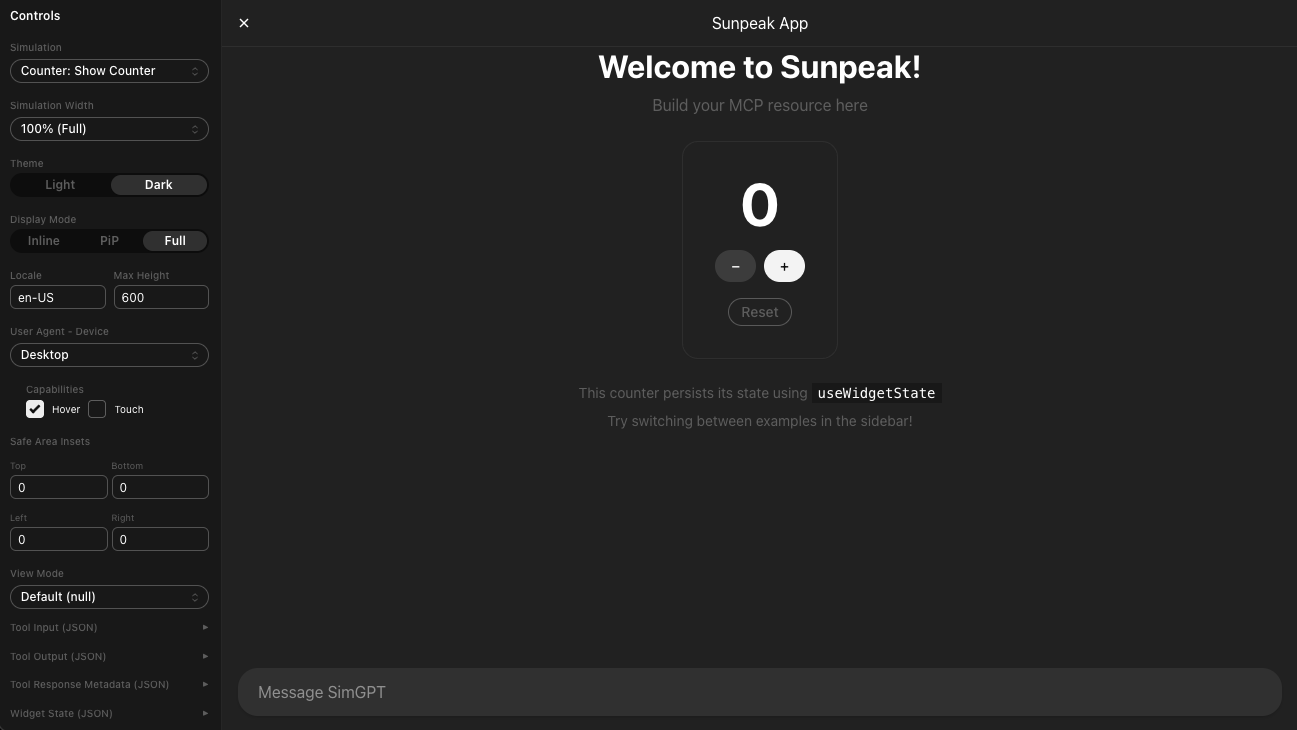
Fullscreen gives the View the main ChatGPT surface for work that cannot fit in one card. OpenAI recommends it for maps, editing canvases, detailed browsing, and other rich tasks. ChatGPT keeps its composer overlaid in fullscreen, and the host supplies a system close control.
That host-owned UI changes the app layout:
- Do not add a second generic close control.
- Keep important actions clear of the composer and safe-area insets.
- Preserve conversational context because prompts can still trigger tools while the View is open.
- Use one scroll owner for the main content, not independent page, panel, and table scrollers.
- Keep app navigation focused on the current task rather than reproducing a full website.
A fullscreen shell needs a fixed outer height and a shrinking, scrollable content track. sunpeak’s SafeArea component applies the current safe-area padding and uses 100dvh in fullscreen. It leaves inline and PiP height content-driven so the View does not pin itself to an early placeholder size.
import { SafeArea, useDisplayMode } from 'sunpeak';

export function ProjectBoard() {
  const displayMode = useDisplayMode();
  const isFullscreen = displayMode === 'fullscreen';

  return (
    <SafeArea className={isFullscreen ? 'flex min-h-0 flex-col' : 'space-y-3'}>
      <header className="shrink-0">Project board</header>
      <section className={isFullscreen ? 'min-h-0 flex-1 overflow-auto' : ''}>
        {/* Filters, columns, and records */}
      </section>
    </SafeArea>
  );
}
min-h-0 matters in a flex or grid layout. Without it, the content track can keep its minimum content height and extend behind the composer instead of scrolling inside the available area.
Avoid using a reported content height as minHeight in fullscreen. The host may report the content or container at a point in the transition that does not match the final viewport. A dynamic viewport unit for the outer shell plus host safe-area data gives the layout a stable owner.
Picture-in-picture display mode
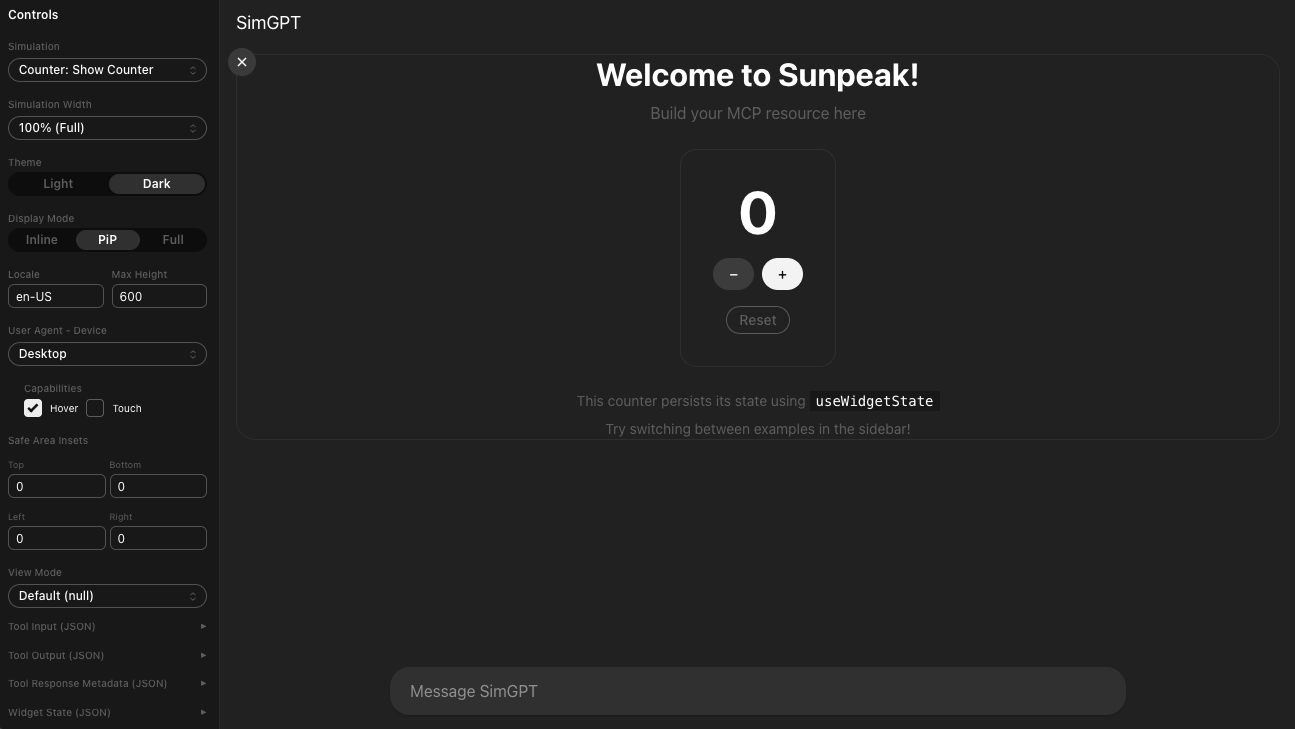
ChatGPT’s PiP mode is a persistent floating surface for an activity that continues alongside the conversation. It remains fixed while the user scrolls or sends more prompts, can update in response to those prompts, and returns to its inline position when the session ends.
Good PiP uses include a video, game round, timer, learning session, live collaboration, or a small status monitor. The surface should answer what is happening now and expose only the controls needed during the ongoing activity.
Do not use PiP for static content that belongs inline or for a dense workflow that belongs fullscreen. A table, settings screen, or large form will either become cramped or force nested scrolling. Offer fullscreen when the user needs detail.
PiP also needs a real session lifecycle. Keep the durable activity state on the MCP server or a backend service so it survives prompts and UI updates. Let the View keep temporary state such as a selected control. Update model context only with the small amount of current state the next conversational turn needs. When the activity ends, close PiP or request inline rather than leaving a finished session pinned.
The standard value is lowercase pip. Still treat it as a capability, not a guaranteed mobile or desktop feature. If the host does not list pip, hide the control and keep the inline experience useful.
Container dimensions are separate from display mode
HostContext.containerDimensions describes how the host allocates width and height. Each axis can be fixed, flexible with a maximum, or unbounded.
| Dimension shape | Owner | View behavior |
|---|---|---|
height or width | Host fixes that axis | Fill the available axis |
maxHeight or maxWidth | View sizes itself up to the limit | Keep natural content size and respect the maximum |
| Field omitted | View controls that axis without a host limit | Use responsive layout and report size changes |
Width and height are independent. A host can supply a fixed width with flexible height, or a flexible width with fixed height. Do not assume that fullscreen always uses fixed dimensions or that inline always uses maximum dimensions.
The most common bug is treating maxHeight as height. That creates empty space for short content and can create a resize loop: the View pins itself to the host’s early limit, reports that height, and the host keeps allocating the same size. For flexible height, let the document size naturally and cap only the outer boundary.
The current @modelcontextprotocol/ext-apps App class enables automatic resize reporting by default. Its observer measures document width and height and sends ui/notifications/size-changed only when the measured value changes. If you construct App with autoResize: false, you own that notification loop and its cleanup.
Use container queries for component layout when the iframe width matters:
.app-shell {
  container-type: inline-size;
}

.result-grid {
  display: grid;
  grid-template-columns: 1fr;
}

@container (min-width: 42rem) {
  .result-grid {
    grid-template-columns: 18rem minmax(0, 1fr);
  }
}
This responds to the actual app container. A page-level media query can see a browser viewport that is much wider than the iframe and choose the wrong layout.
Host-context updates are partial patches
The initialization result gives the View an initial HostContext. Later, the host sends ui/notifications/host-context-changed with only the fields that changed. A patch containing { displayMode: "fullscreen" } does not erase the current theme, locale, dimensions, or safe areas.
The official MCP Apps SDK and sunpeak merge those patches into the current context. If you maintain your own bridge wrapper, merge the patch instead of replacing the whole object.
Mode transitions often coincide with several changes:
displayModechanges frominlinetofullscreen.- Fixed or maximum container dimensions change.
- Safe-area insets change because host chrome appears in a new place.
- Platform capabilities can change after a window moves or a device rotates.
- Theme can change independently while the transition is in progress.
Render each field from the current merged context. Avoid one effect that copies all context into a separate layout state because that adds another place for values to become stale.
Preserve focus and user work across transitions
A mode change should feel like the same app moving to a new surface. Keep the component tree and stable item keys where possible so input values, selection, and focus do not reset.
Use a clear accessible name for mode controls, such as “Expand map” or “Return project board to conversation.” Disable the control while its request is pending. If the request fails, keep the current layout and expose a short error near the control rather than moving focus to an unrelated alert.
In fullscreen, do not trap keyboard focus at the app root. ChatGPT’s composer and system controls remain part of the experience. The app can trap focus inside its own modal while that modal is open, but the base fullscreen View should let users reach host-owned controls.
During PiP updates, avoid replacing the entire document when one value changes because that can drop focus or restart media. Update the active region in place, announce meaningful status changes with an appropriate live region, and stop timers, subscriptions, media, and observers when the host requests teardown.
Test display modes as a state matrix
A screenshot of each mode covers layout but not negotiation. A complete display-mode test plan includes protocol, interaction, layout, and lifecycle behavior.
| Test | What it proves |
|---|---|
| Initial render is inline | The default conversational path works |
| Unsupported target is hidden | The View respects host capabilities |
| Accepted request changes layout | The bridge and context update are wired |
| Declined request keeps current layout | The View does not trust intent as state |
| Partial context patch preserves other fields | Context merging is correct |
| Fixed height has one scroll owner | Fullscreen content stays inside host chrome |
| Flexible max height grows naturally | Inline and PiP do not pin to the limit |
| Narrow viewport and safe-area preset | Controls remain visible and usable |
| Teardown during a pending request | Async cleanup does not update an unmounted View |
| Long, empty, loading, and error fixtures | Content-driven size changes remain stable |
The sunpeak inspector exposes display mode, host, theme, device presets, container dimensions, and safe areas as local controls. Automated tests can pass displayMode directly to inspector.renderTool():
import { expect, test } from 'sunpeak/test';

const modes = ['inline', 'fullscreen', 'pip'] as const;

for (const displayMode of modes) {
  test(`project board renders in ${displayMode}`, async ({ inspector }) => {
    const result = await inspector.renderTool('show-project-board', undefined, {
      displayMode,
      theme: 'dark',
    });
    const app = result.app();

    await expect(app.getByRole('heading', { name: 'Project board' })).toBeVisible();
    await expect(app.locator('[data-display-mode]')).toHaveAttribute(
      'data-display-mode',
      displayMode
    );
    await expect(app).toHaveScreenshot(`project-board-${displayMode}-dark.png`);
  });
}
Run the same inline and fullscreen cases in every supported host project. Run PiP only where the host advertises it. Add a browser interaction test that clicks the real expand control, then checks the resulting layout, because a static fullscreen render cannot prove that the request path works.
Keep one small live ChatGPT suite for the behavior a replica cannot fully prove: the app’s position before the model response, the fullscreen composer and system close control, a prompt updating an active PiP session, and the PiP returning inline when that session ends. Local tests should carry the larger matrix because they are deterministic and can run on every change.
Shipping checklist
Before shipping a ChatGPT App or MCP App with display-mode support, check:
- The View declares every mode it can actually render.
- Transition controls appear only for modes the host currently offers.
- The layout reads current
displayModeinstead of the requested target. - Inline has no tabs, deep navigation, or nested scrolling and limits primary actions to two.
- Fullscreen leaves room for host chrome and has one clear content scroller.
- PiP shows active session state, reacts to prompts, and exits when the session ends.
- Fixed dimensions are filled, while maximum dimensions remain content-driven.
- Host-context patches merge with existing context.
- Keyboard focus, pending requests, and teardown are covered.
- Automated tests cover mode, host, theme, safe area, viewport, and content state.
Display modes are a small protocol surface with a large effect on layout and lifecycle. Build the same resource around current host context, let the host own the final mode, and make inline useful before asking for more space. sunpeak can run the mode and viewport matrix locally and in CI, leaving live ChatGPT tests for the host-owned behaviors that only the real product can prove.
Get Started
npx sunpeak newFurther Reading
- Requesting display mode transitions from an MCP App
- MCP App host context: theme, locale, viewport, and safe areas
- MCP App lifecycle: connect, tool results, and teardown
- MCP App capability detection and fallbacks
- Visual regression testing for MCP Apps
- sunpeak ChatGPT App testing framework
- OpenAI plugin UI guidelines
- OpenAI: add UI to an MCP server
- MCP Apps overview and host context
- MCP Apps requestDisplayMode API
Frequently Asked Questions
What are the three ChatGPT App display modes?
The MCP Apps standard defines inline, fullscreen, and picture-in-picture, whose protocol value is pip. Inline puts the app in the conversation, fullscreen gives it the main host surface, and PiP keeps a small app surface visible while the conversation continues. Every ChatGPT App starts inline, and the host decides whether later mode requests are accepted.
How does inline display mode work in ChatGPT Apps?
ChatGPT places every app inline before the generated model response. Inline cards should fit their content without nested scrolling, avoid tabs or deep navigation, and expose no more than two primary actions. Use inline for focused results, confirmations, small visualizations, and a short path into fullscreen.
How does fullscreen display mode work in ChatGPT Apps?
Fullscreen gives an app room for maps, editors, detailed browsing, and multi-step work. ChatGPT keeps its composer and system close control available, so the app must respect host safe areas and reserve space for host chrome. Use one internal scroll owner and render from the current host-reported mode.
How does picture-in-picture mode work in ChatGPT Apps?
PiP is a persistent floating surface for a live session, game, video, timer, or other activity that should stay visible while the user chats. It can react to new prompts, remains pinned until dismissed or the session ends, and returns inline when the session ends. Keep PiP controls compact and close it when the ongoing activity is complete.
What is the difference between displayMode and availableDisplayModes?
displayMode is the mode the host currently applies. The View declares modes it supports through appCapabilities.availableDisplayModes, while the host reports the modes available in the current surface through HostContext.availableDisplayModes. A View should request only a mode that appears in both lists and must handle the host returning a different mode.
Does maxHeight mean an MCP App should fill that height?
No. A fixed height means the host owns the height and the View should fill it. maxHeight means the View should size to its content up to that limit. Treating maxHeight as height creates empty space or resize feedback loops. Width and height constraints are independent, and an omitted dimension is unbounded.
How do I request fullscreen from a ChatGPT App?
Declare fullscreen support, confirm the host lists fullscreen in availableDisplayModes, and request it after a clear user action. With sunpeak React hooks, read the applied mode with useDisplayMode() and call requestDisplayMode("fullscreen") from useRequestDisplayMode(). Do not optimistically set local mode state because the host may decline or return another mode.
How should I test ChatGPT App display modes?
Test initial inline rendering, accepted and declined transitions, partial host-context updates, fixed and flexible dimensions, safe areas, theme changes, teardown, narrow viewports, keyboard focus, long content, and loading, empty, and error states. Use a local MCP App host replica for deterministic mode and visual tests, then keep a small live ChatGPT test for the actual composer, system controls, and PiP session behavior.
