Claude Connectors vs Claude Apps: What Developers Need to Know (October 2026)
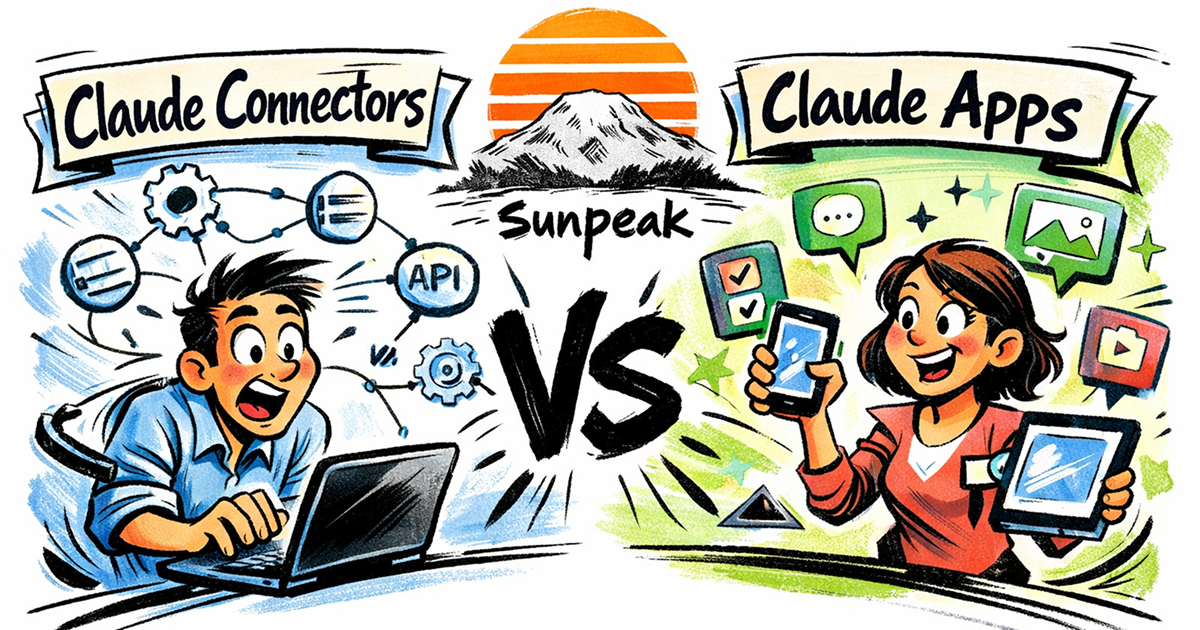
Claude Connectors vs Claude Apps.
TL;DR: A custom Claude connector exposes tools through a remote MCP server. An interactive connector adds MCP Apps UI inside Claude; “Claude App” is developer shorthand for that experience. Build a useful text result first, link a ui:// resource when a visual task needs one, and test both paths locally and in Claude.
The terms “Claude Connector” and “Claude App” often get mixed together. Claude’s docs call the UI-capable entries interactive connectors. Developers sometimes call these “Claude Apps,” but that is not a separate protocol or a required product category. A custom remote connector uses MCP whether or not it has UI.
The difference is what the user can do in the conversation. A tool-only connector returns data for Claude’s answer. An interactive connector can also show a card or fullscreen view for a person to inspect or change data. This post covers the build path and the tests for each.
Claude Connectors: Data In
Claude Connectors are remote MCP servers that give Claude access to external data and services. When a user enables a connector, Claude can call that connector’s tools to search files, read emails, query a CRM, pull product analytics, update a ticket, or call an internal API.
The connector handles the server work: authentication, authorization, validation, API calls, data shaping, and error handling. Claude decides when to call the tool, receives the result, and uses the returned data in the conversation. In a standard connector, the user sees Claude’s answer, not your custom UI.
Users can discover published entries in Claude’s Connectors Directory or add a custom remote MCP server URL. For custom connectors, Claude connects from Anthropic’s cloud, even when the person uses Claude Desktop. The server must be reachable from that cloud path. Local MCP servers configured directly in Claude Desktop are a separate connection path.
From a developer’s perspective, a standard connector is an MCP server with tools. Claude calls your tool, gets structured data back, and uses that data as context. For the full lifecycle, see How Claude Connectors Work.
Claude Apps: UI Out
Interactive connectors can include MCP App UI. The tool descriptor points to a ui:// resource, and a host that supports MCP Apps renders the resource in a sandboxed iframe. Claude currently documents inline cards and fullscreen views. Users can filter, select, edit, or confirm actions in those views when the connector provides them.
Look for the Interactive badge in the directory to see which published connectors offer this experience. The badge is more useful than a list of examples that may change as the directory grows.
Technically, this UI is an MCP App. The MCP Apps quickstart links a tool’s _meta.ui.resourceUri to a resource whose content uses text/html;profile=mcp-app. The host reads that resource and passes tool input and result data to its view.
That distinction matters because the model and UI have different needs. Put a useful answer in content, and use structuredContent for typed data the UI renders. The model may also see structured data, so keep both fields scoped to the user’s request. Result _meta can carry UI helper data where supported, but it still reaches the client: never put credentials there. For the deeper contract, see MCP App tool results and MCP App outputSchema.
The Relationship
For a custom remote connector, the decision is whether to include UI:
| What the user needs | Build path | What must still work without UI |
|---|---|---|
| Search, retrieve, or update data through Claude | Remote MCP connector with focused tools | Tool content explains the result or next step. |
| Review a chart, form, diff, or selection inside Claude | The same connector plus an MCP App resource | Tool output still lets Claude summarize the result. |
| Private team use | Configure a custom remote connector | Server reachability, auth, and tool permissions. |
| Public discovery | Prepare a directory submission | The same remote MCP endpoint and tested tool behavior. |
Start with the tool contract because it forces the input schema, auth model, result shape, and errors to be clear before UI work. A directory listing is a distribution choice, not a requirement for private custom connectors.
One integration can support both paths: the tool returns data Claude can explain, while selected tools link to UI for a person to inspect or edit. For example, a project status tool can return a short count and due dates as text, then show a board when the user needs to move a task.
Building a Standard Connector
A standard connector starts with a remote MCP server and one well-scoped tool. Here is a minimal example:
import { McpServer } from '@modelcontextprotocol/server';
import { z } from 'zod';

const server = new McpServer({ name: 'my-connector', version: '1.0.0' });

server.registerTool(
  'get-metrics',
  {
    description: 'Return signups for a time period.',
    inputSchema: z.object({ timeframe: z.enum(['day', 'week', 'month']) }),
    annotations: { readOnlyHint: true },
  },
  async ({ timeframe }) => {
    const data = { timeframe, signups: 42 }; // Replace with an authorized data lookup.
    return {
      content: [{ type: 'text', text: `${data.signups} signups this ${timeframe}.` }],
      structuredContent: data,
    };
  }
);
Claude calls get-metrics and can answer from content; the structured object gives other clients a stable shape too. No UI is required. The official MCP Apps quickstart uses the current MCP server package when it adds a UI resource.
A production connector needs more than the sample above:
- An HTTPS endpoint Claude can reach, commonly with a
/mcppath. - Clear tool names, descriptions, input schemas, and output schemas.
- An auth choice that matches the data: user sign-in for user-specific access, or a reviewed fixed credential for a shared account. Never accept a user ID from tool arguments as proof of identity.
- Tool annotations for read-only versus write actions.
- Error messages that tell Claude what failed and what can be retried.
- Tests for auth, empty states, rate limits, malformed inputs, and permission boundaries.
For the full walkthrough of building, deploying, and submitting a connector, see the Claude Connectors Tutorial. You can also review tool design patterns, data access patterns, and OAuth setup.
Before adding the server in Claude, test its public HTTPS endpoint from outside your development machine. Claude’s remote connector traffic comes from Anthropic’s cloud, so an endpoint that works only on localhost or a private VPN will fail. In Claude’s connector setup, select user sign-in when the server acts for individual users. Claude also documents no-sign-in and fixed-header options; a fixed shared credential gives every user of that connector the same underlying account access, so scope that account carefully. Organization owners may need to add the connector before members can enable it.
Building a Claude App (Interactive Connector)
A Claude App adds an MCP App resource on top of the connector. The resource is the UI, and the tool result is the data contract between the server, Claude, and the iframe.
import { useToolData, SafeArea } from 'sunpeak';
import type { ResourceConfig } from 'sunpeak';

export const resource: ResourceConfig = {
  description: 'Display metrics as an interactive dashboard',
};

interface MetricsData {
  title: string;
  metrics: { label: string; value: string; change: string }[];
}

export function MetricsDashboard() {
  const { output, isLoading, isError } = useToolData<unknown, MetricsData>();
  if (isLoading) return <SafeArea className="p-4">Loading metrics...</SafeArea>;
  if (isError || !output) return <SafeArea className="p-4">Metrics are unavailable.</SafeArea>;

  return (
    <SafeArea className="p-4 font-sans">
      <h1 className="text-xl font-bold mb-4">{output.title}</h1>
      <div className="grid grid-cols-3 gap-4">
        {output.metrics.map((m) => (
          <div key={m.label} className="p-3 bg-gray-50 rounded-lg">
            <div className="text-sm text-gray-500">{m.label}</div>
            <div className="text-2xl font-bold">{m.value}</div>
            <div className="text-sm text-green-600">{m.change}</div>
          </div>
        ))}
      </div>
    </SafeArea>
  );
}
useToolData receives the tool’s structuredContent; SafeArea keeps controls clear of host chrome. The loading and error branches avoid a blank iframe when the call has not completed or failed.
The fastest way to get started is with sunpeak:
npx sunpeak new sunpeak-app
cd sunpeak-app
pnpm dev
This scaffolds a full MCP App project and starts a local inspector. You can build and test the tool, resource, display modes, themes, safe areas, host context, and simulation states before connecting a real Claude account. The same core app can run in Claude and ChatGPT if you stay on the shared MCP Apps contract and put host-specific features behind feature detection.
Before calling the result interactive, check the protocol boundary: tools/list should advertise _meta.ui.resourceUri; resources/read should return that URI with text/html;profile=mcp-app; and tools/call should return a useful content answer even when the host does not render the resource. Keep CSP domains narrow and test the actual returned resource content, since its _meta.ui.csp can override listing metadata.
If you want to go deeper, the MCP App tutorial covers the full project structure, and How to Build a Claude App covers architecture decisions specific to the Claude host.
The Tool Result Contract
The UI is only one part of the integration. The tool result must also work when Claude summarizes it in text:
contentgives the model a normal MCP response.structuredContentgives the model and app a typed object, usually validated byoutputSchema._metacan carry UI-only helper data when the host supports it.- The tool descriptor’s
_meta.ui.resourceUritells the host which UI resource to read; the resource content carries its MIME type and security metadata. - App state lets the UI keep local interaction state without asking the model to restate everything.
Design that contract before polishing the UI. If content is too vague, Claude cannot explain the result without the view. If structuredContent contains a whole database row, the client may expose more data than the user requested. Test both fields with an authorized user and with a user who lacks access to the record.
Which Should You Build?
Build a standard connector if:
- You want Claude to have access to a data source (database, API, SaaS tool)
- The data is best consumed as facts Claude can reason over
- You don’t need a custom UI beyond Claude’s text responses
Build a Claude App (interactive connector) if:
- You want users to interact with a visual interface inside the chat
- Your data is best shown as a dashboard, form, gallery, map, or other structured UI
- Users need to review, edit, approve, filter, or compare information
- The UI state matters after Claude’s initial tool call
Build both if your integration benefits from data access and visual presentation. Many of the first-party connectors do exactly this.
Portability
Remote MCP tools can work in clients that support the transport and authorization flow you deploy. Each host still needs its own connection setup, auth check, and tool approval review.
Interactive connectors can use MCP Apps, so the portable layer is the shared tool and resource contract. A UI may also run in ChatGPT when that host accepts the same MCP Apps resource. Host behavior can differ around display modes, iframe policies, auth setup, file handling, and approval flows, so check each target host before launch.
With sunpeak, useToolData, useAppState, SafeArea, useDisplayMode, and useHostContext cover shared runtime behavior. Put host-specific hooks behind detection, using documented subpaths such as sunpeak/host/chatgpt. See Building One MCP App for ChatGPT and Claude for a cross-host example.
Testing
Whether you build a standard connector or an interactive app, you will want automated tests. sunpeak’s testing framework supports the full range:
- Unit tests for individual tools, schemas, auth gates, and resource components. See How to Unit Test MCP Apps and Testing Claude Connectors.
- End-to-end tests that simulate the full host runtime. See E2E Testing MCP Apps.
- Visual regression tests for themes, display modes, safe areas, and responsive layouts. See Visual Regression Testing for MCP Apps.
- Live host tests for the deployed connector path. See Live Testing Claude Connectors and ChatGPT Apps.
- CI/CD pipelines that run the suite on every push. See MCP App CI/CD with GitHub Actions.
The best practical workflow is:
- Unit test the tool handler and output schema.
- Render the app resource with pinned simulation data.
- Run E2E tests against Claude and ChatGPT runtime replicas.
- Run visual tests across light, dark, inline, fullscreen, and mobile states that the target host supports.
- Check
tools/list,tools/call, andresources/readon the deployed remote endpoint, then validate the connector in Claude before directory submission.
The Complete Guide to Testing ChatGPT Apps and MCP Apps covers the full testing strategy from start to finish.
If you are deciding where to start, build a standard connector first. Make the tool useful in a plain Claude response. Then add the Claude App layer where UI gives the user a better way to inspect, compare, approve, or edit the result.
Get Started
npx sunpeak newFurther Reading
- What Are Claude Connectors - covers architecture, auth, custom setup, and troubleshooting.
- How to Build a Claude App - the full architecture and code patterns for building interactive connectors.
- How Claude Connectors Work - lifecycle, tool calls, auth, and live host behavior.
- Claude Connectors Tutorial - step-by-step guide to building and deploying a connector.
- Claude Connector OAuth Authentication - production auth requirements and callback setup.
- How to Build an MCP App - architecture for cross-host interactive UI.
- MCP App Tool Results - content, structuredContent, and _meta.
- Building One MCP App for ChatGPT and Claude - write once, deploy across hosts.
- Testing Claude Connectors - unit tests, local inspector, and CI/CD.
- Claude Connector Framework - landing page for Claude Connector capabilities.
- MCP App Framework - portable app architecture for ChatGPT, Claude, and other hosts.
- sunpeak quickstart - scaffold a local MCP App project.
- Official MCP Apps overview and tool-resource contract.
- Official MCP Apps quickstart.
- Claude custom connectors with remote MCP and account setup.
- Claude interactive connectors and supported views.
Frequently Asked Questions
What is the difference between Claude Connectors and Claude Apps?
A custom Claude connector connects Claude to a remote MCP server and its tools. An interactive connector also offers MCP Apps UI for people to inspect or act on results inside Claude. “Claude App” is informal shorthand for that UI experience; Claude labels directory entries with an Interactive badge.
Are Claude Connectors built on MCP?
Custom remote connectors use MCP servers to expose tools and data to Claude. Claude Desktop can also use local MCP servers through a separate setup path. Directory listings add discovery and review, while a private custom connector can be configured directly from its remote server URL.
What are interactive Claude Connectors?
Interactive connectors can render an MCP App interface inside a Claude conversation. A tool advertises a ui:// resource, the host reads that resource, and the user sees an inline card or fullscreen view. The tool should still return useful text for a client that does not render UI.
How do I build a Claude Connector?
Build a remote MCP server that Claude can reach from Anthropic’s cloud, define clear tool schemas, and return useful content. Choose sign-in, no sign-in, or fixed request headers according to the data and account model. For interactive UI, link a tool to a ui:// resource and test the tool without UI as well as in Claude before any directory submission.
Do I need a Claude account to build a Claude App?
No. You can build and test the server, resource, tool result, and UI states locally. You need an eligible Claude account when you connect the remote server for live validation. Claude’s custom connector setup and organization permissions vary by plan.
Can a Claude App also run on ChatGPT?
Yes, if both host integrations support the MCP Apps UI contract. Keep the core on MCP tools, a linked ui:// resource, useful content, structuredContent, host context, and tested fallbacks. Put host-specific actions behind capability checks and test each real host before launch.
Does every Claude Connector include an interactive app?
No. A connector can expose useful tools and return text or structured data without custom UI. Directory entries that offer interactive interfaces have an Interactive badge. Add an MCP App resource when a visual review, form, dashboard, or editing flow makes the task easier.
What is the Claude Connectors Directory?
The Connectors Directory is where users discover published connectors. Some entries have an Interactive badge because they render UI. A developer can first add a custom remote MCP connector privately, then pursue directory review if public distribution is needed.